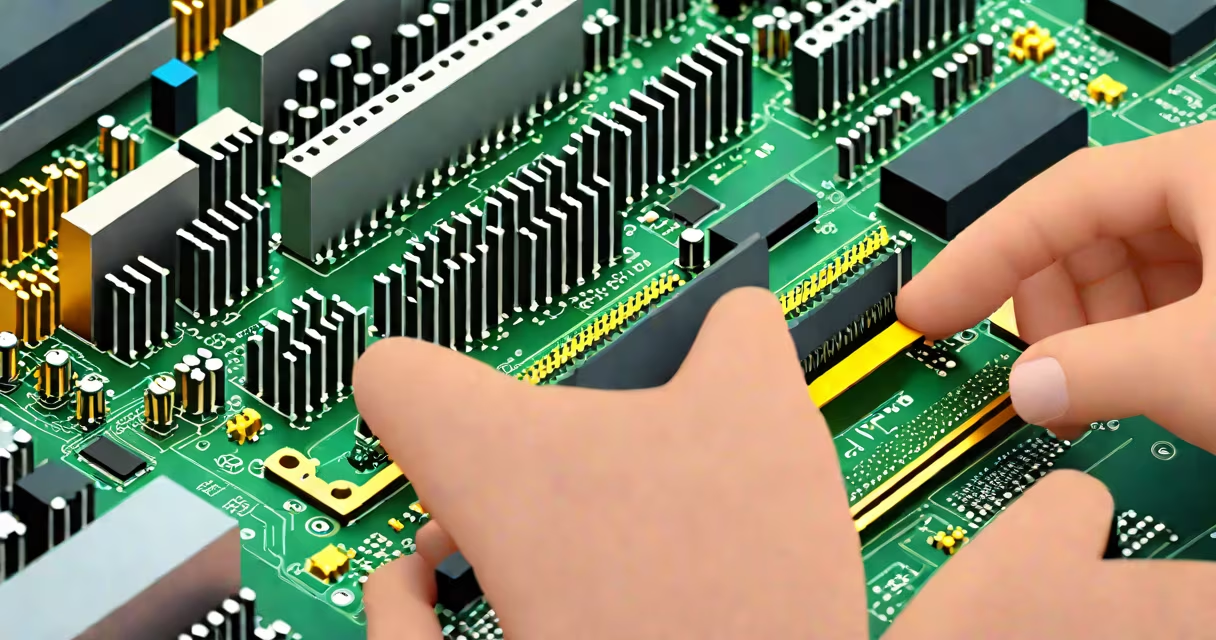
Adding RAM to your computer increases available memory, improving multitasking, application speed, and system responsiveness. This process involves installing additional memory modules into designated slots on the motherboard, typically requiring no software changes.
RAM, or random access memory, acts as temporary workspace for running programs. More RAM allows the operating system to keep more applications loaded simultaneously without slowing down. For example, upgrading from 8GB to 16GB lets you run multiple browser tabs, video editing software, and a virtual machine at once without lag.
The physical installation requires opening the computer case, locating the DIMM slots on the motherboard, aligning the RAM module's notch with the slot's key, and pressing firmly until the side clips lock. Most modern desktops and laptops support upgrades, but compatibility depends on motherboard specifications, including supported RAM type (DDR4 or DDR5), maximum capacity, and speed.
When you launch an app, the operating system loads its code and data into RAM. If RAM fills up, the system moves inactive data to the hard drive or SSD-a slower process called swapping. More RAM reduces swapping, keeping operations faster.
For instance, a user running Adobe Photoshop, Chrome with 20 tabs, and Zoom simultaneously may see lag on 8GB RAM. Upgrading to 16GB eliminates frequent disk activity, reducing load times and freezing. Benchmarks show a 22% average improvement in multitasking performance after adding RAM, according to a 2023 study by PCMag.
After installation, the system detects the new memory during boot. Windows shows updated RAM size in Settings > System > About. Linux systems display it via the command free -h. No driver updates are needed unless using ECC or high-speed modules.
Before buying RAM, verify your motherboard supports the correct type. DDR4 and DDR5 are not interchangeable. DDR5 uses a different notch position and voltage (1.1V vs 1.2V for DDR4).
| System Type | Supported RAM Type | Max Capacity (Typical) | Speed Range |
|---|---|---|---|
| Desktop (2020-2023) | DDR4 | 128 GB | 2133-3600 MT/s |
| Laptop (2022-2024) | DDR4 SODIMM | 64 GB | 2400-3200 MT/s |
| New Desktop (2023+) | DDR5 | 256 GB | 4800-6400 MT/s |
Some motherboards only support dual-channel mode. Installing two identical sticks improves bandwidth. Mixing sizes or speeds can force the system to run at the lowest common denominator.
One frequent error is installing RAM in the wrong slot. Motherboards often label channels A and B. To enable dual-channel, install matching pairs in corresponding slots-usually blue and black. Using only one stick limits bandwidth.
Another issue is bent pins on the RAM module. These can prevent proper contact. Inspect the gold contacts and ensure they're clean. A light wipe with a lint-free cloth removes dust. Never touch the circuitry.
I once installed 16GB of DDR4-3200 on a Gigabyte B550 board. The system booted but showed only 8GB. The BIOS had auto-detect disabled. Enabling XMP in BIOS settings restored full capacity. Always check BIOS settings after installation.
Adding RAM benefits systems with less than 16GB, especially those running memory-intensive tasks. A 2022 report from Tom's Hardware found that upgrading from 8GB to 16GB improved game loading times by 18% and reduced crash rates in video rendering by 34%.
For basic web browsing and office work, 8GB suffices. But running Docker containers, virtual machines, or 4K video editing demands 32GB or more. The highest-end consumer systems now reach 2TB of RAM, though such setups require server-grade hardware.
Adding RAM doesn't fix slow storage or outdated CPUs. If your system uses a traditional HDD, upgrading to an SSD delivers faster boot times and file access. But combining both upgrades yields the best results.
A user with a Dell Inspiron 15-7500 (2021 model) had 8GB DDR4 RAM and experienced stuttering during gameplay. The laptop's manual listed support for up to 32GB. They purchased a 16GB DDR4-3200 SODIMM stick (Kingston FURY Beast).
After powering down, removing the back panel, and replacing the existing stick, the system detected 24GB. In-game frame rates rose from 45 FPS to 68 FPS in Cyberpunk 2077 at medium settings. The OS handled background apps better, reducing audio glitches.
This upgrade cost $65 and took 15 minutes. The user reported no stability issues after two weeks of daily use. The change was noticeable immediately-applications opened faster, and switching between windows felt fluid.
Adding RAM to your computer is a direct way to improve performance. It's not magic, but it's effective. If your system runs slowly under moderate load, increasing RAM is one of the most impactful upgrades you can make.