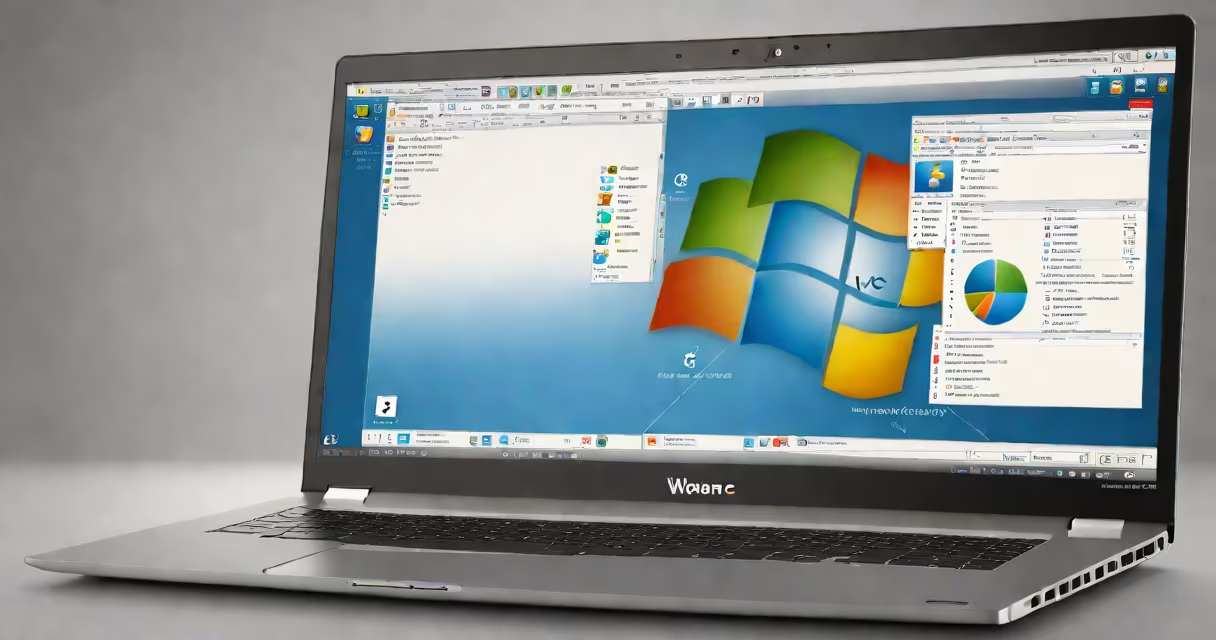
VMware Windows 7 is a virtual machine configuration where Windows 7 runs as a guest operating system inside VMware's virtualization software, such as VMware Workstation or VMware Player. This setup isolates the Windows 7 environment from the host system, enabling safe testing, debugging, and legacy application execution.
Virtual machines (VMs) simulate physical hardware. VMware creates a virtual x86 environment with emulated processors, memory, storage, and network interfaces. When you install Windows 7 in this environment, it behaves like a standalone computer, but runs within a window on your actual machine. You can pause, reset, or revert the VM to a previous state using snapshots-a feature critical for development and troubleshooting.
VMware supports Windows 7 as a guest OS on both Windows and Linux hosts. It requires a compatible CPU with virtualization extensions (Intel VT-x or AMD-V) enabled in BIOS. Without these, the VM won't start. VMware Workstation Pro and VMware Workstation Player are the most common tools for running Windows 7 VMs. Both allow multiple VMs to run simultaneously, each with dedicated resources.
When you create a VMware Windows 7 VM, the software allocates a portion of your host's RAM, disk space, and CPU cycles. The VM boots from a .iso file containing the Windows 7 installation media. During setup, you assign virtual hardware: 2 GB of RAM, 20 GB of virtual hard disk, and a single virtual CPU core are typical minimums. Once installed, the guest OS runs independently, responding to keyboard, mouse, and network input through the host's devices.
VMware Tools is a set of drivers and utilities that improve performance and usability. After installing VMware Tools in the Windows 7 VM, you gain features like smooth window integration, shared clipboard, drag-and-drop file transfer between host and guest, and better graphics rendering. Without VMware Tools, display resolution is limited, and mouse cursor movement may lag.
A real-world example: A developer tests a web application under Windows 7 because the client still uses Internet Explorer 11. They create a VM with 4 GB RAM, 50 GB disk, and a bridged network adapter. After installing Windows 7 and VMware Tools, they run automated browser tests via Selenium. If a test fails, they roll back the VM to a known good state saved in a snapshot. This process takes less than 30 seconds and avoids reinstalling the OS.
VMware offers several products for running Windows 7. The choice depends on your use case, budget, and host OS:
| Product | Use Case | Windows 7 Support | Cost |
|---|---|---|---|
| VMware Workstation Pro | Advanced users, developers, IT professionals | Full support, including nested virtualization | $199/year (subscription) |
| VMware Workstation Player | Students, hobbyists, basic testing | Full support, no advanced features | Free for personal use |
| VMware Fusion (Mac-only) | Mac users needing Windows 7 | Yes, but limited to macOS hosts | $199/year |
For maximum compatibility, use VMware Workstation Player if you're on Windows or Linux and don't need enterprise features. It supports Windows 7 SP1 with 64-bit architecture. The 32-bit version is available but not recommended due to limited memory addressing and driver support.
Non-obvious fact: VMware Workstation does not natively support Windows 7 in UEFI mode. The default firmware is BIOS. To enable UEFI, you must manually edit the .vmx configuration file and set firmware = "efi". Without this change, the VM fails to boot with a "No boot device found" error. This limitation often trips up users upgrading from older VMs.
VMware Windows 7 is not the same as running Windows 7 on physical hardware. It's not a dual-boot setup. It's a simulated environment. Some assume it runs faster than native Windows 7, but performance depends heavily on host resources. A low-end laptop with 8 GB RAM and a slow HDD may struggle to run a Windows 7 VM smoothly, especially with graphics-intensive tasks.
Another confusion: People think VMware Workstation is free. It's not. The Player version is free for personal, non-commercial use. If you're using it for work, education, or automation, you need a license. VMware Workstation Pro costs $199 annually or $299 for a perpetual license. Using unlicensed software violates VMware's EULA and exposes you to legal risk.
Some users mistake VMware's "snapshot" feature for a backup. Snapshots save the VM's state at a point in time but do not protect against host drive failure. A snapshot is a delta file that grows over time. If the host disk fails, the entire VM may be unrecoverable. For long-term data protection, use VMware's export function to create a portable.ovf or.ova file.
Organizations use VMware Windows 7 for compliance testing. For example, a financial firm must ensure that trading software works on all supported OS versions. They maintain a VM with Windows 7 SP1, IE11, and required ActiveX controls. The team runs regression tests weekly. If a bug appears, they compare the current VM state with a snapshot taken before the last update. This workflow reduces debugging time from hours to minutes.
I once ran a Windows 7 VM for a client who needed to access a government portal that only accepts IE11. The portal was incompatible with modern browsers. I created a VM with 4 GB RAM, 40 GB disk, and a NAT network setting. After installing Windows 7 and configuring IE11, I added a trusted site entry and enabled ActiveX controls. The client accessed the portal successfully. The VM remained isolated from the host, preventing malware exposure.
VMware Windows 7 is also used in cybersecurity training. Penetration testers simulate attacks on a Windows 7 VM to study exploit behavior without risking production systems. Tools like Metasploit can be run safely inside the VM. After testing, they discard the VM and recreate it from a clean template.