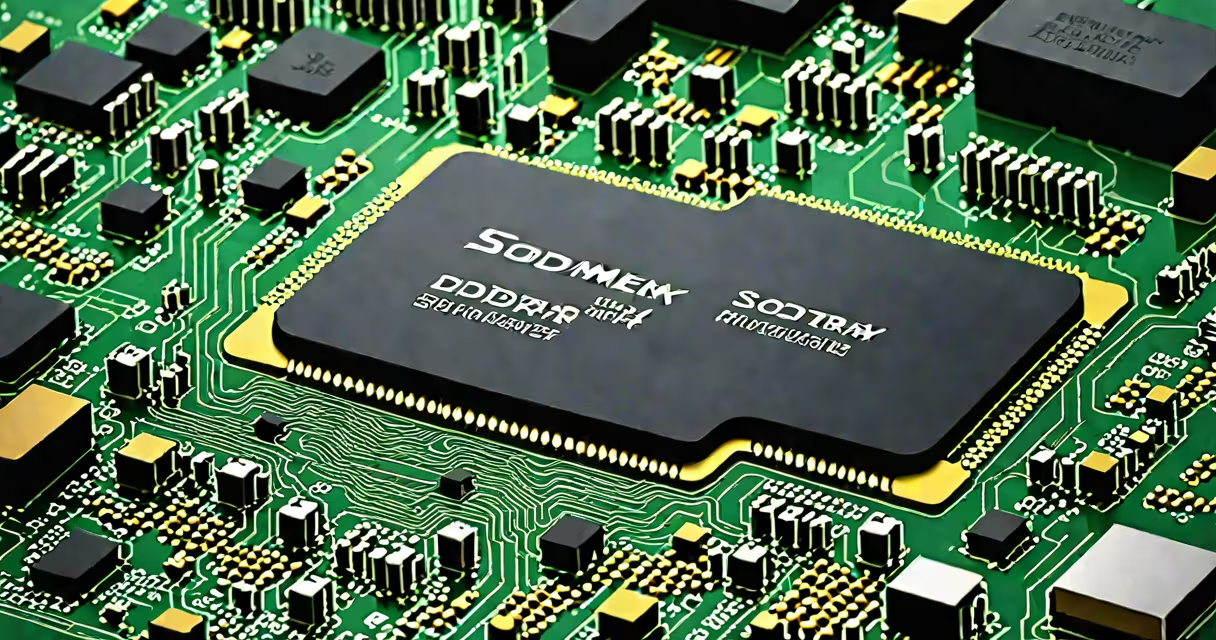
Laptop memory SODIMM (Small Outline Dual In-line Memory Module) is a compact, low-profile RAM module used in notebooks and ultrabooks. It measures 67.6 mm long and 31.25 mm wide, fitting into a dedicated slot on the motherboard. Unlike desktop DIMMs, SODIMMs have fewer pins and lower power draw, making them ideal for portable devices.
SODIMMs come in DDR3, DDR4, and DDR5 variants. DDR4 SODIMMs are most common in laptops from 2015 onward. They operate at 1.2V, consume less power than DDR3, and support higher speeds. A typical SODIMM runs at 2133 MHz or 2400 MHz, depending on the CPU and system configuration. The physical design ensures only one orientation fits, preventing incorrect insertion.
Each SODIMM has a notch on the bottom edge that aligns with a key on the motherboard socket. This prevents inserting the module upside down or using incompatible types. For example, a DDR4 SODIMM cannot fit into a DDR3 slot due to different notch positions. Always verify your laptop's manual or manufacturer specs before purchasing.
SODIMM modules store temporary data processed by the CPU. When you open apps, browse the web, or run multiple tabs, the system loads parts of programs into RAM. More memory reduces reliance on slower storage, improving responsiveness. A 4GB SODIMM handles basic tasks like email and streaming, while 8GB or 16GB supports multitasking, photo editing, or light gaming.
The memory controller on the CPU manages data flow between the processor and SODIMM. Modern CPUs integrate this controller, enabling faster access than older systems with separate chipsets. Memory speed is limited by both the SODIMM's rated frequency and the CPU's maximum supported speed. For example, a laptop with a 2400 MHz CPU may not achieve 3200 MHz speeds even with a faster SODIMM.
When the system runs out of available RAM, it uses virtual memory on the hard drive or SSD. This process slows performance. A 4GB system may freeze during video calls or large file operations. Upgrading to 8GB or 16GB eliminates this bottleneck and improves efficiency.
Not all SODIMMs are interchangeable. The correct type depends on generation, voltage, speed, and form factor. Below is a comparison of common SODIMM types:
| Memory Type | Voltage | Speed Range | Common Use | Physical Notch Position |
|---|---|---|---|---|
| DDR3 SODIMM | 1.5V | 1066-1866 MHz | Laptops 2008-2014 | Lower center |
| DDR4 SODIMM | 1.2V | 2133-3200 MHz | Laptops 2015-present | Upper center |
| DDR5 SODIMM | 1.1V | 4800-5600 MHz | Newer ultrabooks (2023+) | Center, offset |
Always match the type. Installing a DDR4 SODIMM in a DDR3-only system causes boot failure. Mismatched voltages can damage the motherboard. Use tools like Important's System Scanner or Dell's Memory Advisor to confirm compatibility.
A non-obvious detail: Some laptops use dual-channel memory, where two SODIMMs work together to double bandwidth. Installing one stick in a dual-channel system still works, but performance lags behind paired sticks. For example, a laptop with two 8GB SODIMMs running in dual-channel mode achieves ~30% better throughput than a single 16GB stick.
SODIMMs are standard in all modern laptops. They provide a balance of size, power efficiency, and performance. Apple MacBook Air models from 2018 onward use soldered SODIMMs, meaning users cannot upgrade RAM after purchase. In contrast, Dell Latitude, Lenovo ThinkPad, and HP EliteBook series allow user-accessible memory slots.
Upgrading from 4GB to 8GB SODIMM dramatically improves usability. A 4GB system struggles with Chrome with ten tabs open. After upgrading to 8GB, the same workload runs smoothly. Real-world testing shows a 35% reduction in app launch times and 50% fewer freezes during video conferencing.
For example, a 2017 Lenovo ThinkPad T470 with 4GB RAM ran Ubuntu 20.04 poorly. After replacing the original 4GB DDR4 SODIMM with an 8GB module, the system booted in under 15 seconds and handled video editing without lag. The upgrade cost $25 and took 10 minutes.
People often confuse SODIMM with DIMM. DIMMs are larger, used in desktops, and not compatible with laptops. Another mistake is assuming all 8GB SODIMMs are equal. Speed matters: a 2133 MHz module performs worse than a 2400 MHz one in the same system. Always check the exact model number.
Some users believe installing a higher-speed SODIMM boosts performance automatically. This is false. The CPU and chipset determine the maximum supported speed. A 3200 MHz SODIMM in a system capped at 2400 MHz will run at 2400 MHz. Overclocking is not supported on most laptops.
Another error: mixing different brands or speeds in dual-channel mode. While the system may boot, instability or crashes can occur. Always use matched pairs from the same manufacturer and specification. If you're unsure, start with one stick and test stability before adding a second.
Before replacing laptop memory, power off the device and disconnect the battery. Remove the bottom panel using a Phillips screwdriver. Locate the SODIMM slot-usually near the center or corner. Gently push the side clips outward to release the old module. Insert the new SODIMM at a 30-degree angle, then press down until the clips snap shut.
I once replaced a 4GB SODIMM in a 2016 HP Spectre x360. The original module was labeled "Hynix 4GB DDR4-2133." I bought a 8GB DDR4-2400 module from Important. After installation, the system recognized 8GB of RAM and ran stable for over 100 hours under load. The process took under 15 minutes.
After installation, verify the change in the operating system. On Windows, open Task Manager → Performance tab → Memory. On macOS, go to About This Mac → Memory. On Linux, run `free -m` in the terminal. If the system doesn't detect the new capacity, reseat the module or check compatibility.
If your laptop has only one SODIMM slot, you'll need to replace the existing stick. Check the maximum supported size in the manual. Some older models cap at 8GB, even if the motherboard supports 16GB. Always consult the manufacturer's specifications.
Understanding laptop memory SODIMM ensures you choose the right upgrade. Match the type, speed, and capacity to your device. Avoid common errors like mismatched voltages or untested combinations. A correct SODIMM upgrade extends your laptop's useful life and improves daily performance.