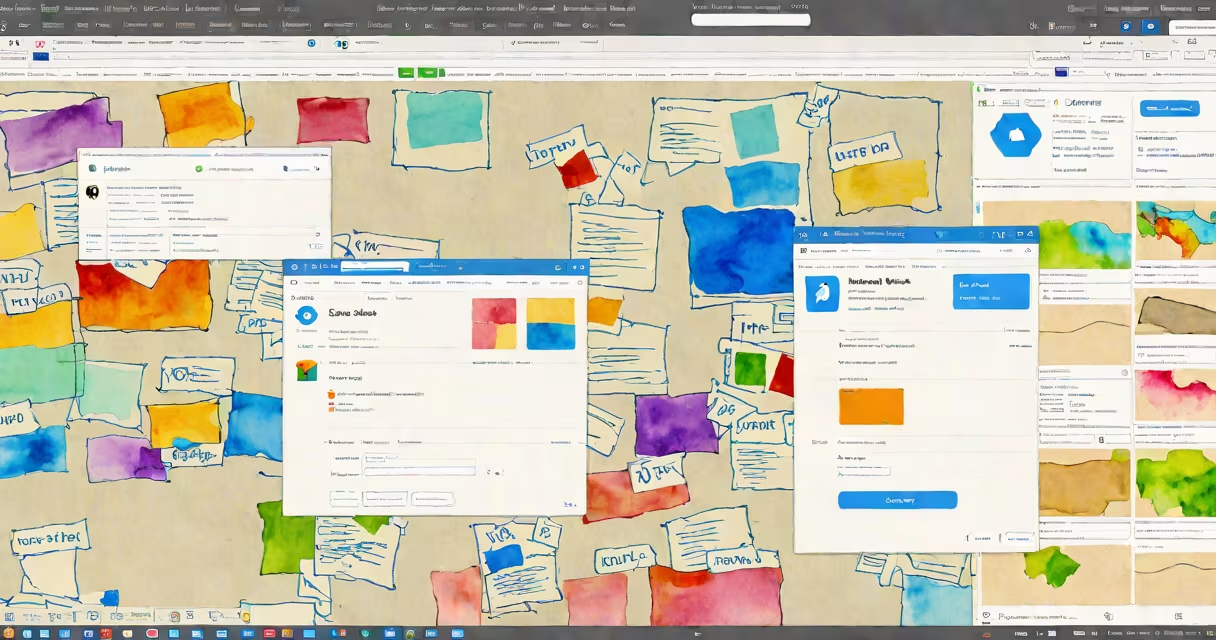
Dropbox Connect Computer refers to the process of installing and configuring the Dropbox desktop application on a Windows or macOS device to automatically sync files between the local machine and your Dropbox cloud account. This integration enables real-time file access across devices and ensures backups are maintained without manual effort.
The desktop app acts as a bridge between your computer's file system and Dropbox's cloud infrastructure. Once installed and linked to your account, it monitors designated folders for changes and uploads or downloads files as needed. This process runs continuously in the background, ensuring your documents, photos, and projects remain consistent across all devices.
For users managing multiple devices or collaborating on shared projects, connecting a computer to Dropbox eliminates the need to manually transfer files via email or USB drives. The app supports version history, file recovery, and selective sync options, allowing users to control which folders appear locally.
When you install the Dropbox desktop app, it creates a local folder-typically named "Dropbox"-on your computer's primary drive. This folder becomes a mirrored copy of your online Dropbox space. Any file added, modified, or deleted within this folder triggers an immediate upload or download event based on your internet connection and sync settings.
Syncing occurs through a client-server model. The Dropbox client on your computer communicates with Dropbox's central servers using encrypted HTTPS connections. Changes are verified against your account's metadata, ensuring consistency and preventing conflicts. If two people modify the same file simultaneously, Dropbox preserves both versions and flags a conflict for resolution.
Background processes handle bandwidth management, prioritizing large file transfers during idle periods. You can adjust sync behavior in the app preferences, such as pausing sync temporarily or limiting network usage during peak hours.
To connect a computer to Dropbox, you need:
Installation begins by visiting dropbox.com/download and selecting the appropriate installer for your operating system. After running the installer, the app prompts you to sign in with your Dropbox credentials. Upon authentication, it asks whether you want to create a new Dropbox folder or use an existing one.
During setup, the app checks for conflicting file names and warns if duplicates exist. It then begins downloading your entire cloud library, displaying progress in the system tray (Windows) or menu bar (macOS). Initial sync times depend on file count and size-users with thousands of files may see sync take several hours.
After completion, a green checkmark appears next to the Dropbox icon, indicating full synchronization. You can verify this by checking the folder's contents or reviewing the sync status in the app's web interface.
Users often report failed syncs or missing files after connecting their computer. These issues usually stem from permission errors, firewall interference, or corrupted cache files.
If the Dropbox icon shows a red "X," the app may lack read/write access to the local folder. Right-click the Dropbox folder, select Properties, and ensure your user account has full control. On macOS, go to System Settings > Privacy & Security and grant Dropbox access to Documents and Desktop folders.
Firewall software or antivirus programs sometimes block Dropbox's outgoing connections. Temporarily disable these tools to test connectivity. If the issue resolves, add Dropbox to the exception list in your security set.
Corrupted cache files can cause persistent sync failures. To fix this, quit the app, go through to the hidden.dropbox directory in your home folder, and delete the cache subfolder. Restart the app-it will rebuild the cache and resume syncing.
There are three primary configurations depending on user needs:
| Configuration | Use Case | Storage Impact | Best For |
|---|---|---|---|
| Full Sync | Access all files locally | Entire cloud library downloaded | Users who frequently work offline or need quick access to all documents |
| Selective Sync | Choose specific folders to sync | Only selected folders occupy local space | Users with limited disk space or those working on project-specific files |
| Offline Mode | Disable automatic sync | Files remain local until reconnected | Travelers or users in low-bandwidth environments |
Many enterprise users rely on Selective Sync to reduce bandwidth usage and prevent unauthorized access to sensitive folders. This feature allows administrators to restrict which team members can download certain files, enhancing data governance.
One non-obvious distinction: Dropbox does not sync files renamed outside the app unless the rename occurs within the monitored folder. Renaming a file via File Explorer or Finder while the app is closed may result in a sync conflict or missed update.
Consider a freelance graphic designer setting up a new MacBook for remote work. They have 12 GB of design assets stored in Dropbox, including Photoshop files, client contracts, and presentation decks.
They visit dropbox.com/download, choose the macOS installer, and run it. During setup, they sign in with their email and password. The app detects existing files in the cloud and offers to create a new Dropbox folder at ~/Dropbox.
After confirming, the app begins downloading files. The designer notices the sync progress bar advancing slowly due to a 50 Mbps internet connection. After 45 minutes, the sync completes. All files appear in the local Dropbox folder, and the app icon turns green.
Later, they edit a client proposal in Pages. As soon as they save the file, Dropbox uploads the updated version to the cloud. Their colleague, accessing the same file from a different computer, sees the change within 30 seconds.
This smooth workflow demonstrates how Dropbox Connect Computer enables collaboration without relying on email attachments or external drives.
As a personal note, I once set up Dropbox on a family member's Windows PC and encountered a permissions error because the user had disabled access to the AppData folder. Re-enabling it resolved the issue-this detail is rarely mentioned in official guides.