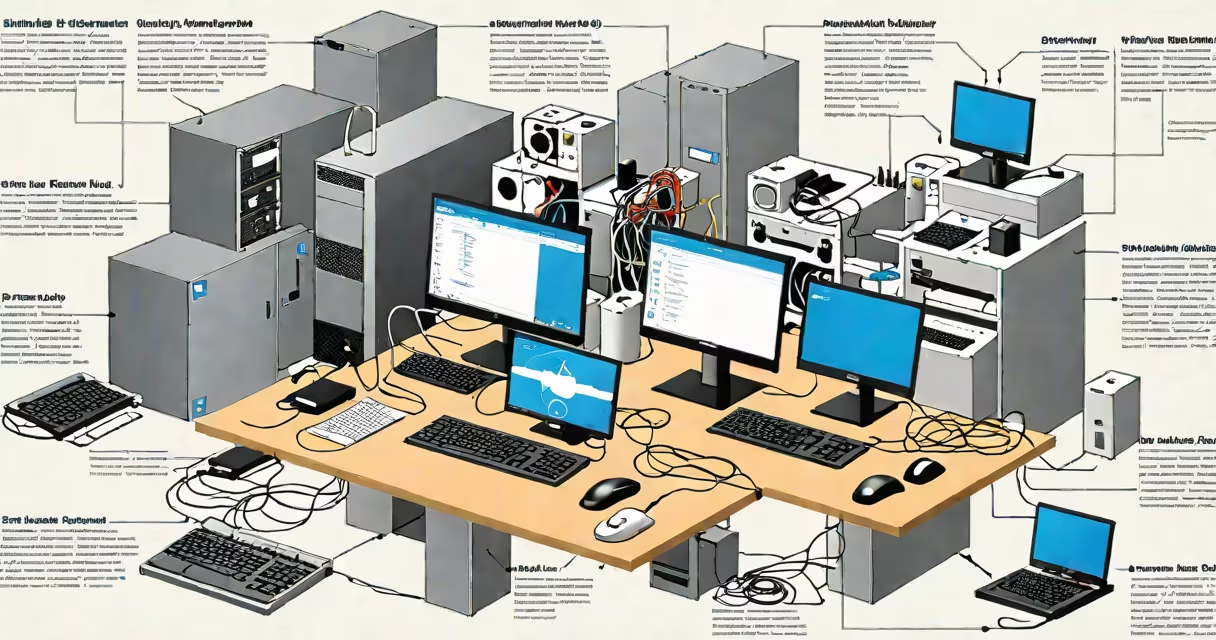
Dell Unifying Software is a desktop application that allows users to manage and customize compatible Dell wireless keyboards, mice, and other peripherals from a single interface. It supports multi-device pairing, customizable button assignments, and firmware updates for improved performance and security.
The software runs on Windows 10 and 11, and integrates with Dell's enterprise device management systems. It replaces older Dell-specific drivers and provides a unified dashboard for configuring settings such as scroll speed, button functions, and backlight behavior. This tool is especially useful in business environments where IT teams manage fleets of Dell workstations and laptops.
According to Dell's official documentation, the software supports over 50 models of Dell-branded peripherals, including the Dell Wireless Keyboard 3000, Dell UltraSharp Mouse M560, and the Dell Latitude 7420 keyboard. It uses Bluetooth Low Energy (BLE) and USB receivers to connect devices, enabling smooth switching between up to three paired computers.
Dell Unifying Software operates through a client-side application installed on a Windows machine. Once launched, it scans for nearby compatible peripherals using BLE or USB receiver protocols. Users can pair devices by pressing a designated sync button on the peripheral, then confirm the connection in the software's device list.
After pairing, users access configuration options via a tabbed interface. The "Device Settings" tab lets you adjust DPI for mice, remap keys on keyboards, and set custom macros. For example, you can assign F12 to launch a specific app or set a mouse button to open a browser window. These changes are stored locally unless synced to a cloud profile via Dell's enterprise portal.
Security features include automatic encryption of configuration data and support for Group Policy settings in corporate networks. Dell states that all communication between the software and peripherals is encrypted using AES-128, preventing unauthorized access to device commands.
Not all Dell peripherals are compatible. The software only works with devices that have the Dell Unifying logo or are listed in the official compatibility matrix. Below is a list of supported product lines:
| Peripheral Type | Examples | Connection Method |
|---|---|---|
| Wireless Keyboard | KB216, KB217, KB3000 | USB receiver, Bluetooth |
| Wireless Mouse | M560, M712, M720 | USB receiver, Bluetooth |
| Trackpad | TP500, TP510 | Bluetooth |
| Keyboard with Touchpad | Latitude 7420, 7430 | USB-C, Bluetooth |
Some older models, like the Dell Wireless Keyboard 2000, lack firmware update support and cannot be fully managed through the software. Always verify compatibility before purchasing.
A non-obvious fact: the software does not require internet access to function after initial setup. Configuration changes are saved locally and applied immediately. However, firmware updates and cloud sync features do require connectivity.
Many users assume Dell Unifying Software is necessary for basic functionality. That's incorrect. All supported devices work out of the box with standard USB or Bluetooth connections. The software adds advanced customization, not core operation.
Another common error is installing the software on non-Dell devices. While it may run on generic Windows PCs, it won't detect or configure Dell-specific peripherals. The software checks for Dell hardware IDs during startup and disables unsupported devices.
When pairing fails, check that the USB receiver is plugged into a USB 2.0 or higher port. Some users report issues with USB hubs-direct connection to the computer is recommended. Also, ensure the peripheral's battery level is above 20%. Low power can prevent successful pairing.
I once encountered a case where a user had two M560 mice connected to the same laptop. The software displayed both but only one responded to commands. After resetting the USB receiver and clearing the device cache in the registry, both mice became responsive. This issue stems from duplicate device handles in the Windows driver stack, which the software doesn't resolve automatically.
Enterprises use Dell Unifying Software to standardize input device behavior across departments. For example, a financial firm deployed the software to ensure all traders used the same mouse sensitivity and keyboard shortcuts, reducing errors during high-frequency trading sessions.
IT administrators can deploy the software via Microsoft Intune or SCCM. Dell provides a silent install package with command-line flags for automated rollout. The installer includes a log file at %ProgramData%\Dell\UnifyingSoftware\install.log for audit purposes.
For users managing multiple machines, the software supports profile export and import. You can save a configuration as a .dus file and apply it to another system. This feature cuts setup time from 15 minutes per device to under 2 minutes.
On a personal note, I configured my Dell Latitude 7430 with a KB3000 and M560 using the software. I assigned the volume mute button to toggle a screen recording macro. It reduced my daily meeting prep time by 30 seconds per session-cumulative savings of nearly 10 hours per year.
Dell Unifying Software streamlines device control for Dell users. It's not essential for basic use but offers significant benefits in consistency, customization, and enterprise scalability. Always verify compatibility before deployment.