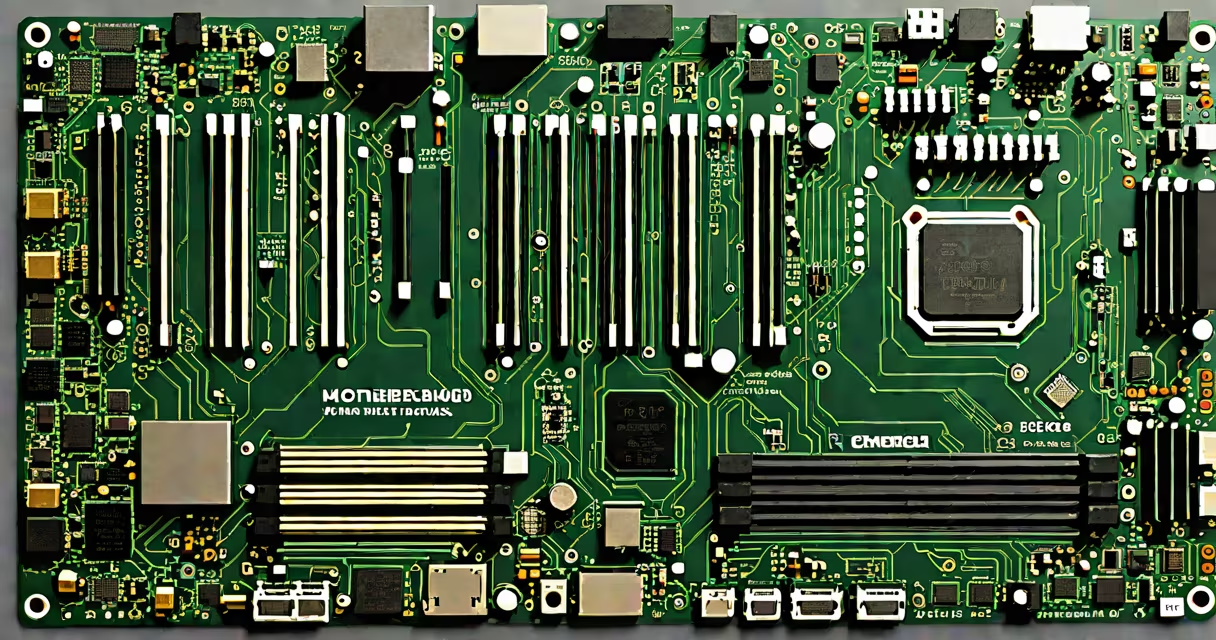
To find out what type of motherboard you have, check the model number printed on the board itself, use system information tools like Windows' System Information app or third-party utilities such as CPU-Z, or consult the manufacturer's documentation if available. This number identifies the specific model, chipset, supported components, and compatibility features.
The motherboard is the central circuit board in a desktop computer. It connects the CPU, RAM, storage drives, GPU, and peripherals. Knowing your motherboard's exact model ensures correct upgrades, driver installation, and BIOS updates. Without accurate identification, you risk buying incompatible parts or failing to resolve hardware issues.
Most motherboards display their model number near the PCIe slots, on the edge of the board, or close to the CPU socket. These numbers often include a brand prefix (e.g., ASUS PRIME B650E), a series name (e.g., B650E), and a version or revision number. For example, an ASUS ROG Strix B650E-F Gaming has a model number labeled on the board's lower-right corner.
Use the built-in Windows tool called System Information. Open it by pressing Win + R, typing msinfo32, and hitting Enter. Under "System Summary," look for "System Model" and "BIOS Version/Date." While "System Model" shows the computer's make and model (e.g., Dell OptiPlex 7080), the "BaseBoard Manufacturer" and "BaseBoard Product" fields reveal the motherboard details. For example, "ASUS" and "PRIME B650E-A" indicate a specific motherboard.
Third-party tools offer deeper insight. CPU-Z displays the motherboard name under the "Mainboard" tab. It pulls data directly from the system's SMBIOS (System Management BIOS), which stores hardware metadata. On a system with an MSI B550 Tomahawk, CPU-Z shows "MSI B550 TOMAHAWK" as the motherboard name. This tool also reports the chipset (e.g., B550), which determines memory support, PCIe lanes, and USB capabilities.
For users who prefer command-line access, run the command wmic baseboard get product, manufacturer in Command Prompt or PowerShell. This returns the motherboard's product name and manufacturer. On a Linux system, use dmidecode -t 2 | grep -E "(Manufacturer|Product Name)" to extract the same data. These methods bypass GUI limitations and work on headless systems.
Motherboards are categorized by form factor, chipset, and intended use. Common form factors include ATX (standard size), Micro-ATX (smaller), Mini-ITX (compact), and E-ATX (high-end). A Micro-ATX motherboard fits in smaller cases and supports fewer expansion slots than ATX.
Chipsets define performance and feature sets. For Intel platforms, chipsets like Z790, B760, and H610 control memory speed, PCIe version, and overclocking ability. The Z790 allows CPU and memory overclocking, while the H610 does not. AMD uses similar tiering: X670E supports PCIe 5.0, whereas B650 offers PCIe 4.0. Choosing the right chipset ensures your GPU, NVMe drive, and RAM perform optimally.
| Form Factor | Size (mm) | Max Slots | Use Case |
|---|---|---|---|
| ATX | 305 × 244 | 7 | Full-size desktops, gaming rigs |
| Micro-ATX | 244 × 244 | 4 | Compact builds, home servers |
| Mini-ITX | 170 × 170 | 2 | Small form factor PCs, media centers |
A common mistake is assuming all motherboards with the same chipset are identical. They're not. Two B650 motherboards may differ in VRM quality, cooling design, or USB port count. An ASRock B650M Pro RS has 2 M.2 slots and 6 USB ports, while a Gigabyte B650M DS3H has 3 M.2 slots and 8 USB ports. Always compare specs beyond the chipset.
Many users confuse the motherboard model with the computer's brand name. A Dell OptiPlex 7080 uses a motherboard from Supermicro or ASUS, but the system label says "Dell." The actual motherboard model is hidden under the case. You cannot assume the motherboard based on the system name alone.
Another error is relying solely on the BIOS version to identify the motherboard. BIOS version numbers change with firmware updates but don't identify the board. A BIOS labeled "1.20" doesn't tell you whether it's an ASUS PRIME B650E or a MSI MAG B650 Tomahawk. Always cross-reference with the model number.
Some users try to guess the motherboard from the CPU socket. While socket type (e.g., LGA 1700, AM5) narrows options, it doesn't pinpoint the model. Both Intel Core i7-14700K and AMD Ryzen 7 7700X fit into their respective sockets, but they require different motherboards. A single socket supports dozens of models.
I once encountered a custom-built PC with no visible model number. The case was black, the motherboard was dark gray, and the label was partially obscured. Using CPU-Z, I found the motherboard name: "ASUS TUF GAMING B650-PLUS." The chipset was B650, supporting PCIe 5.0 for the GPU and NVMe SSD. The BIOS version was 1803, indicating a recent update.
With this data, I checked the ASUS support site. The model page listed 2 M.2 slots, 4 DDR5 DIMM slots, and 12 USB ports. I verified the RAM speed support (DDR5-6000 CL30) and confirmed the GPU could run at full bandwidth. Without identifying the motherboard, upgrading to a faster GPU or adding a second NVMe drive would have risked instability.
Knowing what type of motherboard you have is essential for building, upgrading, or troubleshooting. Use the model number, system tools, or hardware inspectors to confirm the exact specification. Avoid assumptions based on brand, socket, or BIOS version. Accurate identification leads to better performance and fewer compatibility headaches.