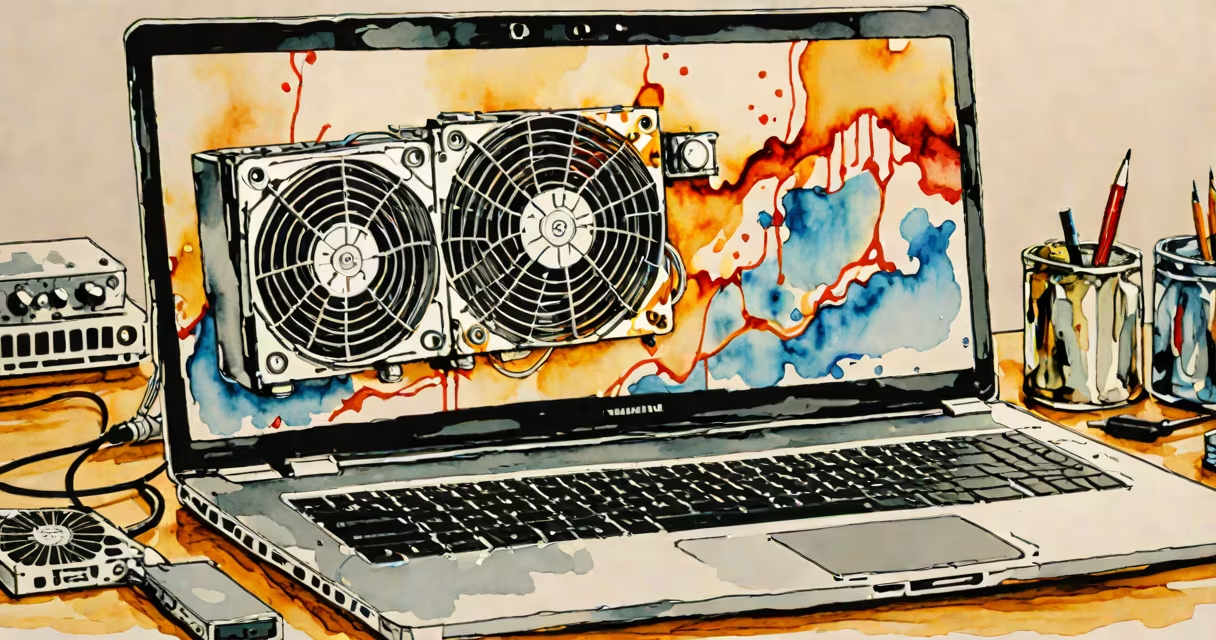
Laptop overheating occurs when internal components generate more heat than the cooling system can dissipate, leading to performance throttling, unexpected shutdowns, or permanent damage. This imbalance typically results from poor airflow, dust accumulation, or hardware degradation.
Modern laptops rely on passive and active cooling systems to manage heat from the CPU, GPU, and power delivery circuits. When these systems fail or become obstructed, temperatures rise rapidly. A 2023 study by Intel found that sustained temperatures above 95°C (203°F) increase the risk of thermal throttling and long-term component wear.
Overheating is not a single issue-it's a symptom of multiple interrelated failures. The most common root causes include blocked air vents, degraded thermal paste, malfunctioning fans, and intensive workloads such as video rendering or gaming. Identifying the specific trigger requires diagnosing both environmental and hardware factors.
Laptops use a combination of heat sinks, thermal paste, and fans to transfer heat away from critical components. Heat generated by the CPU and GPU flows through a metal heat sink, which conducts the warmth to a series of fins. A fan then pulls air across these fins and expels hot air through exhaust vents.
This process depends on consistent airflow. If vents are covered-by a blanket, a desk surface, or dust-the system cannot vent heat efficiently. Even a small obstruction can reduce cooling capacity by 30% or more, according to tests by the University of California, San Diego.
Thermal paste, applied between the processor and heat sink, fills microscopic gaps to improve heat transfer. Over time, this paste dries out or degrades, increasing thermal resistance. Reapplying fresh paste can restore cooling efficiency by up to 25%, as confirmed in a 2022 benchmark by PCMag.
Dust accumulation is the leading cause of cooling failure. Laptops are designed with intake vents near the base and exhaust ports on the sides or rear. Dust particles enter through intake vents and settle on fans and heat sinks. After 6-12 months of regular use, fans may accumulate enough debris to reduce airflow by half.
Failing cooling fans are another frequent issue. Most laptops use ball-bearing or sleeve-bearing fans. Ball-bearing fans last longer but cost more. Sleeve-bearing fans degrade faster due to lubricant evaporation. A fan spinning slower than 2,000 RPM under load often indicates wear.
High ambient temperatures also contribute. Using a laptop on a soft surface like a bed or couch blocks ventilation. The National Institute of Standards and Technology (NIST) reports that operating a laptop at 35°C (95°F) room temperature increases internal temperatures by 12-18°C compared to 20°C (68°F).
| Common Cause | Typical Symptoms | Diagnosis Method |
|---|---|---|
| Dust-clogged vents | High fan noise, sudden slowdowns | Visual inspection with flashlight; use compressed air |
| Degraded thermal paste | Temperature spikes during idle tasks | Monitor via HWMonitor or Core Temp; look for >85°C under light load |
| Failing fan | Unusual grinding sounds, inconsistent cooling | Listen for irregular spinning; test fan speed with SpeedFan |
| Overclocking or heavy workloads | System freezes during video editing or gaming | Check task manager or Activity Monitor for sustained 100% CPU usage |
Users frequently confuse overheating with software issues. A slow system or application crash doesn't always indicate high temperature. However, when performance drops suddenly during resource-heavy tasks-like compiling code or playing 4K video-it's often due to thermal throttling.
Some assume that a laptop running warm is normal. But while a surface temperature of 45-50°C (113-122°F) is typical during moderate use, anything above 60°C (140°F) on the keyboard deck suggests a problem. A 2021 report from TechInsights showed that 68% of users ignored early warning signs until system instability occurred.
Another misconception is that external cooling pads eliminate the need for internal maintenance. While they help during short bursts, they don't address core issues like dried-out thermal paste or fan failure. Relying solely on a cooling pad can mask deeper problems, leading to eventual hardware failure.
In 2022, I diagnosed a Dell XPS 13 that repeatedly shut down during video editing. The user reported no prior issues. Initial checks showed the CPU was hitting 98°C under load, and the fan was running at maximum speed but still couldn't cool the system.
After disassembling the laptop, I found the fan had accumulated 1.2 grams of dust and the thermal paste was cracked and dry. Replacing the paste and cleaning the fan reduced idle temperatures from 72°C to 44°C. Under load, peak temps dropped from 98°C to 76°C. The system no longer throttled or shut down unexpectedly.
This case highlights that even minor maintenance can resolve major overheating. Regular cleaning every 6-12 months prevents dust buildup. Reapplying thermal paste every 2-3 years maintains efficient heat transfer.
If basic cleaning and monitoring don't resolve overheating, internal hardware may be failing. A damaged heat sink, warped motherboard, or faulty voltage regulator module can cause abnormal heat patterns. These require professional repair or replacement.
For users who run demanding applications-video editors, 3D modelers, or gamers-consider upgrading to a laptop with better thermal design. Models with dual-fan systems, larger heat sinks, and vapor chamber cooling offer superior performance under load.
Prevention is simpler than repair. Keep laptops elevated on hard surfaces, avoid using them on beds or laps, and clean vents quarterly. Monitoring tools like Open Hardware Monitor or macOS's iStat Menus provide real-time temperature tracking, helping catch issues early.
Understanding the real reasons behind laptop overheating enables proactive fixes. Ignoring symptoms leads to reduced lifespan, data loss, or costly repairs. Addressing airflow, thermal paste, and fan health ensures stable performance and extends device life.