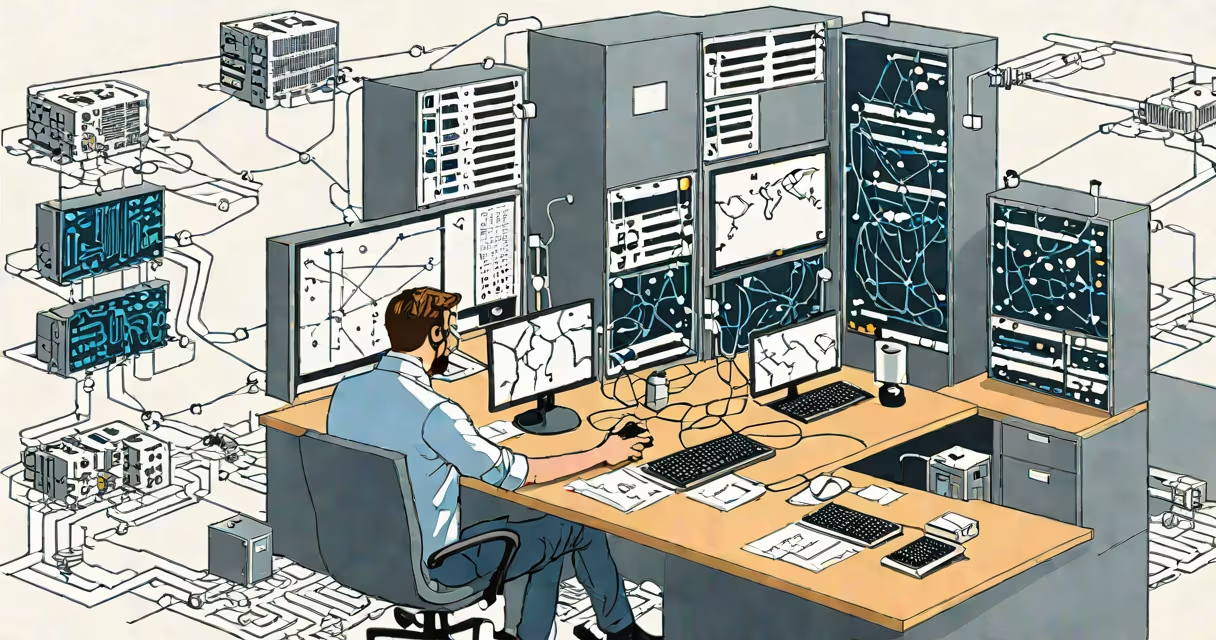
Network discovery is the automated process of detecting devices, services, and IP addresses on a local network using standardized protocols such as ARP, ICMP, SSDP, and mDNS. It enables systems to identify available hardware and software resources without manual configuration.
When a computer connects to a network, it sends out requests to find nearby devices-printers, routers, smart appliances, or servers. These requests are answered by devices that respond with their presence, location, and capabilities. This information appears in tools like Windows Network, macOS Finder, or network monitoring apps.
For example, when you plug in a new smart thermostat, your home Wi-Fi router broadcasts its availability via mDNS. Your phone's control app detects it within seconds through network discovery and adds it to your list of connected devices. Without this process, you'd have to manually enter IP addresses or service names.
Network discovery relies on low-level communication protocols built into operating systems and network hardware. Devices broadcast their presence using multicast packets, which are received by all devices on the same subnet.
ARP (Address Resolution Protocol) maps IP addresses to MAC addresses. When a device wants to communicate with another on the same network, it sends an ARP request asking "Who has this IP?" The owner replies with its physical address. This step is critical for routing traffic locally.
ICMP (Internet Control Message Protocol) enables ping-based discovery. A system sends an ICMP echo request to a range of IPs. Devices that respond are marked as active. Tools like nmap use this method to scan networks quickly. For example, running nmap 192.168.1.0/24 scans all devices between 192.168.1.1 and 192.168.1.254.
Several protocols underpin network discovery. Each serves a specific purpose depending on the environment and device type.
| Protocol | Use Case | Example |
|---|---|---|
| ARP | Mapping IP to MAC addresses | Windows sees a printer at 192.168.1.100 and resolves its physical address |
| ICMP | Ping-based reachability checks | Running ping 192.168.1.1 confirms the router is online |
| mDNS | Zero-configuration device naming | A smart speaker responds to "Hey Google" because it advertises itself as speaker.local |
| SSDP | UPnP device discovery | Streaming media from a phone to a TV via DLNA |
These protocols operate silently in the background. They don't require user setup and work across different vendors. For instance, Apple's Bonjour uses mDNS to make AirPrint printers appear automatically on Macs and iPhones.
According to the Internet Engineering Task Force (IETF), mDNS operates on port 5353 and uses multicast DNS queries to resolve hostnames like printer.local without needing a central DNS server. This allows devices to self-identify on small or isolated networks.
Many users assume network discovery is always enabled or secure. That's not true. By default, Windows disables network discovery in public networks to prevent unauthorized access. You must manually enable it in private or domain networks.
Another misconception is that network discovery reveals everything. It doesn't. A device may be powered on and connected, but if it doesn't respond to ARP or ICMP, it won't show up. Some devices disable responses to reduce attack surface-especially IoT gadgets.
For example, during a home network audit, I found a security camera that didn't appear in my router's client list. It was set to silent mode and ignored all broadcast pings. Only after enabling debug logging did I see it was responding on UDP port 8080. This highlights that discovery depends on device behavior, not just connectivity.
Network discovery simplifies device management in homes, offices, and data centers. It reduces the need for manual IP tracking and streamlines troubleshooting.
In enterprise environments, IT teams use network discovery to maintain accurate asset inventories. Tools like SolarWinds Network Configuration Manager scan networks daily to detect unauthorized devices or misconfigured endpoints. According to Gartner, organizations that automate network discovery reduce unplanned downtime by up to 30%.
Home users benefit too. When setting up a new smart light bulb, the app uses network discovery to locate it. If the bulb doesn't respond, the app prompts you to reset it or check Wi-Fi settings. This feedback loop prevents frustration and speeds up setup.
Without network discovery, managing dozens of devices would require maintaining spreadsheets of IP addresses, MAC addresses, and service ports. It would be error-prone and time-consuming.
Suppose you connect a new HP LaserJet to your office network. The printer gets an IP from DHCP but doesn't appear in Windows File Explorer under "Network."
First, verify the printer is responding to ARP. Open Command Prompt and run:
arp -a | findstr "192.168.1.105"If no result appears, the printer isn't advertising its presence. Check its network settings. Ensure it's set to "Auto" or "DHCP" and not "Static" with a wrong subnet.
Next, test ICMP reachability:
ping 192.168.1.105If the ping fails, the printer may be blocking ICMP. Some models disable echo replies for security reasons. In that case, try accessing the web interface at http://192.168.1.105.
If the web interface loads, go to the network settings and confirm that "Bonjour" or "mDNS" is enabled. Reboot the printer. After reboot, check Windows Network again. The printer should now appear as HP-LaserJet-105.
This scenario shows that network discovery isn't foolproof. Device configuration, firewall rules, and network segmentation can block detection. But when working correctly, it saves hours of manual troubleshooting.