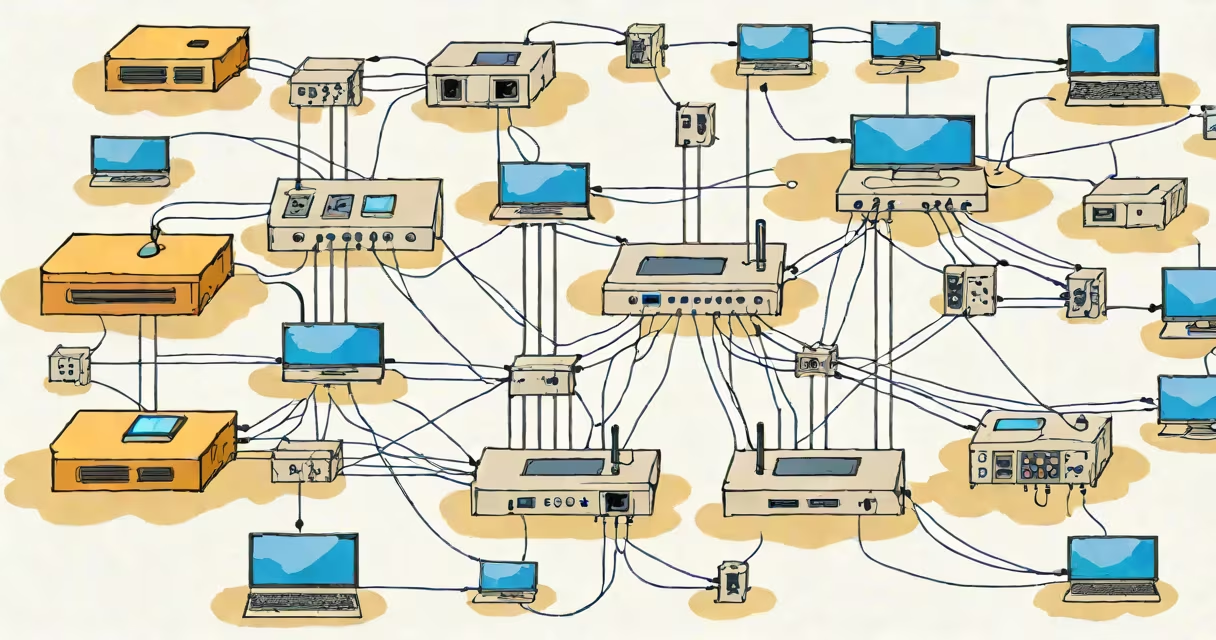
What is my network refers to the collection of devices, services, and connections that share a common IP address range and operate under a single administrative domain-typically within a home or small office setup. This includes your router, smartphones, laptops, smart TVs, and IoT gadgets. Knowing your network means understanding who and what is connected, how they communicate, and what risks may exist.
Your network is defined by its gateway-the router or modem that assigns IP addresses using DHCP. All devices on the network receive an IP like 192.168.1.100, and traffic flows through this central point. Without identifying your network, you cannot monitor access, detect intrusions, or resolve connectivity problems.
When you connect a device to Wi-Fi or Ethernet, it sends a request to the router asking for an IP address. The router responds with a unique local IP, a subnet mask (usually 255.255.255.0), and a default gateway (your router's IP). This process is called DHCP leasing.
Once assigned, devices use this IP to send and receive data. For example, when your phone downloads a video, it sends a request to a server on the internet. The router forwards the request, receives the response, and routes it back to your phone. All communication stays within the network until it reaches the internet.
Every device on your network has a MAC address-a unique hardware identifier. Routers log these addresses along with assigned IPs. You can view this list in your router's admin panel under "Connected Devices" or "DHCP Client List."
A typical home network consists of four core components: the gateway (router), wired and wireless clients, a DNS resolver, and a firewall. The router acts as the central hub, managing traffic and enforcing security policies.
Wired devices connect via Ethernet cables. They receive static or changing IPs and often have faster, more stable connections. Wireless devices-like phones and tablets-connect through Wi-Fi signals broadcast by the router. These signals weaken with distance and interference from walls or microwaves.
Networks also include services like file sharing, printer access, and remote management. A home network with a NAS (network-attached storage) allows multiple users to stream media or back up files. These services run on specific ports and require proper configuration to function securely.
| Type | Connection Method | Typical IP Range | Use Case |
|---|---|---|---|
| Router | Wired (Ethernet) | 192.168.1.1 | Gateway and network controller |
| Smartphone | Wi-Fi | 192.168.1.10-19 | Internet access, apps, messaging |
| Smart TV | Wi-Fi or Ethernet | 192.168.1.20-25 | Streaming, gaming, voice control |
| NAS Device | Ethernet | 192.168.1.50 | File storage, backups, media server |
Identifying your network prevents unauthorized access. A guest might connect to your Wi-Fi and use your bandwidth for streaming or torrenting. Without monitoring, you won't know if someone is stealing your internet speed or accessing private data.
Knowing your network helps diagnose problems. If your printer isn't responding, checking the list of connected devices confirms whether it's online. If a device shows up with an unknown name-like "TP-Link_7D2F"-it could be a compromised device or a neighbor's device using your signal.
For example, during a home audit, I discovered a device named "Camera_001" on my network. It wasn't mine. Using the router's admin interface, I traced its MAC address and found it belonged to a nearby apartment. I changed my Wi-Fi password and enabled MAC filtering to prevent future breaches.
People often confuse "what is my network" with "what is my IP address." Your public IP (like 203.0.113.10) is assigned by your ISP and changes periodically. Your private IP (like 192.168.1.100) is internal and only visible within your network. Knowing both helps troubleshoot connection issues.
Another mistake is assuming all devices on your network are safe. A smart lightbulb with outdated firmware can be exploited to launch attacks. A device with a known vulnerability can serve as a foothold for hackers to move laterally across your network.
Some believe their network is secure because they use WPA2 encryption. But weak passwords or default settings leave doors open. A study by the SANS Institute found that 43% of home networks still use default passwords or outdated protocols.
To find out what is my network, start by logging into your router's web interface. Access it via a browser at 192.168.1.1 or 192.168.0.1. Enter the admin username and password-often printed on the router's label.
Look for sections labeled "Attached Devices," "DHCP Clients," or "Device List." You'll see a list of all devices currently connected, including their IP, MAC address, and hostname. Some routers show device types (e.g., "iPhone," "Android Phone").
For a deeper look, use tools like Advanced IP Scanner or Fing. These apps scan your network and display detailed info-device make, operating system, open ports. Fing, for instance, identified a Raspberry Pi running unpatched software on my network that was attempting to connect to external servers.
If you're unsure about a device, disconnect it and monitor network behavior. If performance improves or unknown traffic stops, you've found a culprit.
Once you know what is my network, take steps to protect it. Change your Wi-Fi password regularly. Use WPA3 encryption if available. Disable WPS (Wi-Fi Protected Setup)-it's vulnerable to brute-force attacks.
Enable firewall rules on your router. Block incoming traffic from the internet unless necessary. Set up a guest network for visitors. This isolates guests from your main devices and prevents them from accessing your files or cameras.
Update firmware on your router and connected devices. Manufacturers release patches for known vulnerabilities. A 2022 report by Kaspersky Lab showed that 68% of router breaches involved unpatched firmware.
For ongoing monitoring, consider setting up a network intrusion detection system (NIDS) like Snort. It watches for suspicious patterns-like repeated login attempts or unusual outbound traffic-and alerts you in real time.
Understanding what is my network isn't optional-it's essential for privacy, performance, and safety. With the right tools and habits, you can maintain full visibility and control over your digital environment.