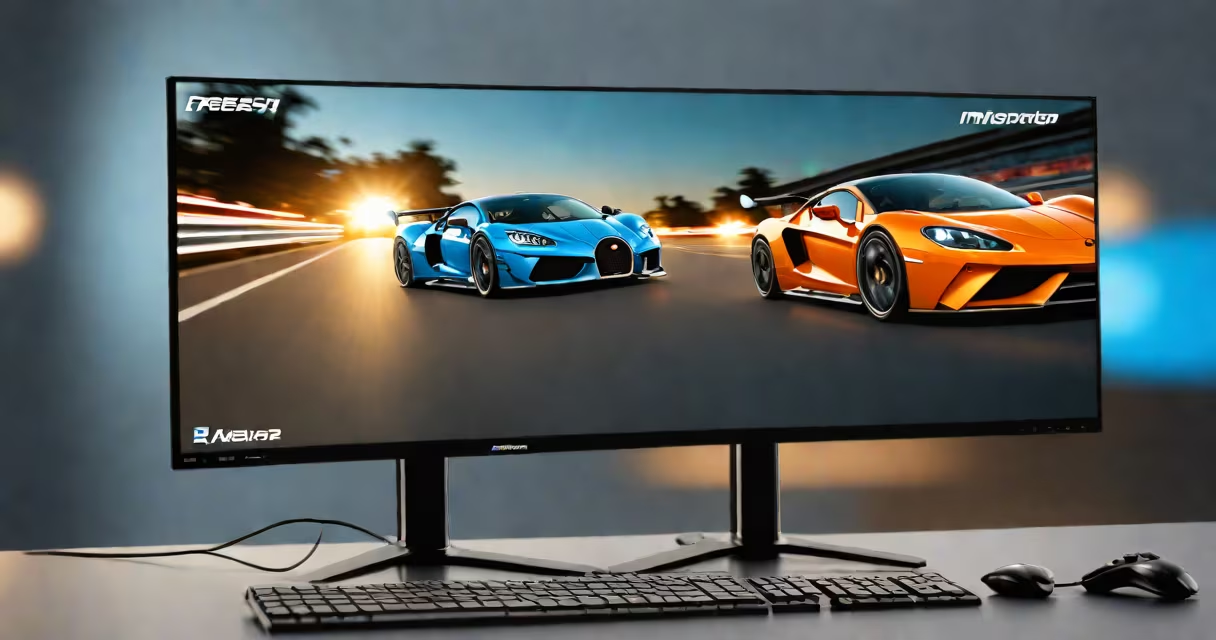
Your monitor refresh rate is the number of times per second your screen redraws the image, measured in hertz (Hz). A 60Hz monitor updates 60 times per second; a 144Hz monitor updates 144 times per second. Higher values reduce motion blur and improve responsiveness.
Refresh rate is distinct from resolution, frame rate, and response time. Resolution defines pixel count (e.g., 1920×1080), frame rate is how many frames your graphics card outputs per second, and response time measures how quickly pixels change color. The refresh rate sets the upper limit for how smoothly motion appears on-screen.
For example, a 60Hz monitor cannot display more than 60 unique images per second, even if your GPU renders 120 frames per second. This mismatch causes screen tearing unless you enable vertical sync (V-Sync) or use adaptive sync technologies like G-Sync or FreeSync.
Each frame displayed on your monitor is a snapshot of the current scene. The screen paints this image line by line, then repeats the process. At 60Hz, this cycle completes 60 times per second. At 120Hz, it happens 120 times per second. Faster cycles create smoother motion perception.
Human eyes detect motion changes more at higher refresh rates. Studies show that people perceive smoother motion above 60Hz, especially during rapid movement. The difference is most noticeable in fast-paced games, video editing, and scrolling through web pages.
Modern monitors use panel types like IPS, TN, or OLED, each with different refresh rate capabilities. IPS panels typically support 60Hz to 144Hz. High-end gaming monitors use TN or OLED panels to achieve 240Hz or higher. You cannot exceed a monitor's maximum refresh rate, even if your GPU sends more frames.
Common refresh rates include:
| Refresh Rate | Typical Use Case | Perceived Smoothness |
|---|---|---|
| 60Hz | Basic office work, web browsing, casual video | Acceptable for static content; noticeable motion blur in fast scenes |
| 120Hz | Gaming, streaming, video editing | Smoother motion; preferred for competitive play |
| 144Hz | High-performance gaming, esports | Reduced input lag; improved motion clarity |
| 240Hz | Professional esports, high-speed content creation | Minimal motion blur; optimal for fast reflexes |
Most consumer monitors cap at 144Hz. Monitors above 240Hz are rare and expensive, designed for elite gamers and professionals who need maximum responsiveness.
Some displays advertise "refresh rate" incorrectly. For example, a monitor may claim "120Hz" but only support it via software interpolation, not native hardware output. Always verify the native refresh rate in the manufacturer's technical specs. The DisplayFuture database provides verified specifications for thousands of models.
Refresh rate impacts performance in three key areas: gaming, productivity, and visual comfort.
In gaming, higher refresh rates reduce perceived input lag. A 144Hz monitor responds to your mouse or controller inputs faster than a 60Hz monitor, giving you a competitive edge. According to a 2021 study by the University of Waterloo, players using 144Hz monitors completed objectives 11% faster in fast-paced shooters compared to 60Hz users.
For productivity, a higher refresh rate makes scrolling through long documents or going through complex dashboards feel more fluid. While not critical for typing or reading, it reduces eye fatigue during extended sessions. The American Optometric Association notes that smooth motion reduces visual stress, particularly for users sensitive to screen flicker.
When watching videos, refresh rate affects playback quality. Standard video content is recorded at 24fps or 30fps. A 60Hz monitor can display this cleanly. But 120Hz or 240Hz monitors can interpolate frames to simulate smoother motion, though this introduces artificial motion artifacts.
Many users mistake refresh rate for frame rate. Frame rate is generated by your GPU; refresh rate is limited by your monitor. If your monitor runs at 60Hz and your GPU outputs 120 frames per second, half the frames are discarded or duplicated. This creates stuttering or ghosting unless synchronization tools are enabled.
Another misconception is that higher refresh rates always improve image quality. They don't. Color accuracy, contrast ratio, and brightness depend on panel type and calibration-not refresh rate. A 240Hz monitor with poor color reproduction still shows inaccurate colors.
Also, refresh rate doesn't affect power consumption directly. A 60Hz monitor uses roughly the same energy as a 144Hz model when displaying the same content. However, higher refresh rates can increase GPU load, indirectly raising system power draw.
To find your monitor's current refresh rate:
xrandr --prop | grep -i refresh.I tested this on a Dell UltraSharp U2723QE. Its default setting was 60Hz. After adjusting to 120Hz in Windows settings, motion in a 120fps video became noticeably smoother. The change required a compatible HDMI 2.0 cable and GPU support.
If your monitor doesn't list higher options, it may not support them. Check the manual or visit the manufacturer's website. For example, the ASUS ROG Swift PG279Q supports 144Hz natively via DisplayPort 1.2.
Understanding what is my monitor refresh rate helps you choose the right display for your needs. A 60Hz monitor suffices for daily tasks. Gamers and creatives benefit from 120Hz or higher. Always match your monitor's refresh rate to your GPU's output capability and use proper cables.