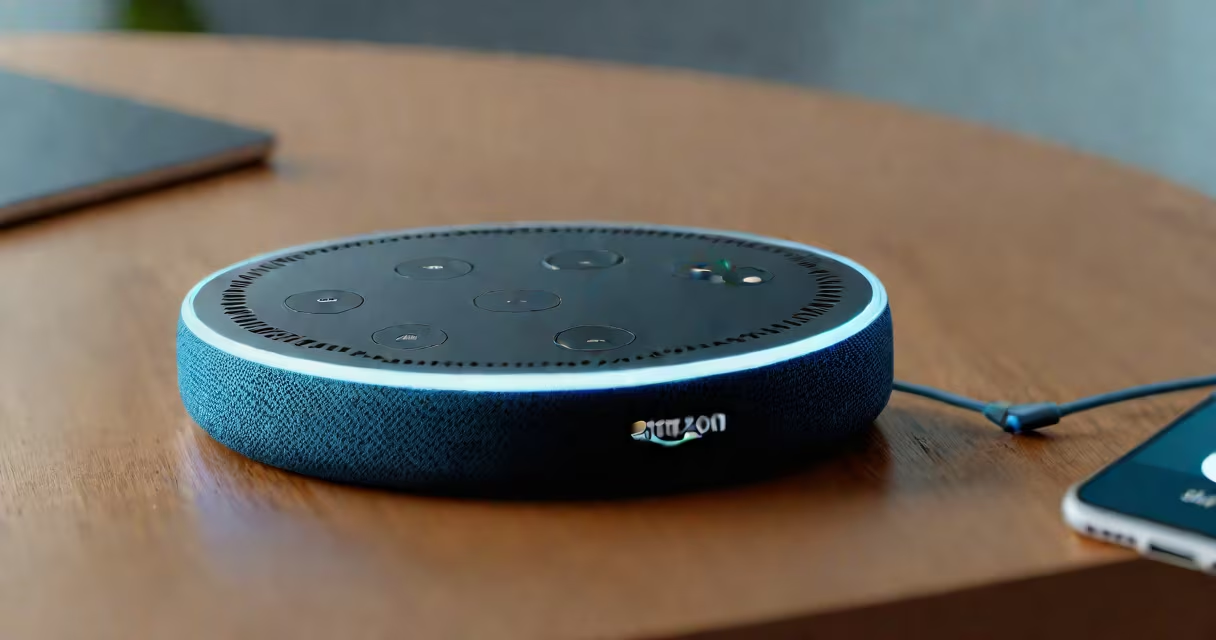
To identify your Alexa device, check the model name printed on the bottom, use the Alexa app's Devices tab, or ask Alexa directly. The device name appears in the app under Settings > Devices. Physical features like size, color, and speaker placement also help distinguish models.
Every Alexa-enabled device runs Amazon's voice assistant software, but they differ in form factor, audio quality, and added features. Knowing which model you own affects how you set it up, troubleshoot issues, and use skills. The most common devices include the Echo, Echo Dot, Echo Show, and Echo Studio.
Amazon updates device models annually. For example, the Echo Dot (5th Gen) includes a built-in clock, improved microphone range, and a redesigned fabric cover. The Echo Show 15 features a 15.6-inch touchscreen and supports video calls, recipes, and live camera feeds. These differences matter when choosing accessories or troubleshooting connectivity.
Each Alexa device sends a unique identifier to Amazon's cloud service during setup. This ID ties to a specific hardware model and firmware version. The Alexa app uses this data to display the correct device name and settings.
You can verify your device model by saying, "Alexa, what kind of device am I?" The response will state the model name, such as "Echo Dot (4th generation)" or "Echo Show 10." This command works on all devices with a microphone and internet connection.
If the voice response fails, open the Alexa app. Tap the menu icon, select Devices, then tap the device name. Under Device Info, you'll see the model number (e.g., ECHODOTGEN4) and serial number. These details appear even if the device is offline.
Different Alexa devices have distinct physical traits. The Echo Dot (5th Gen) measures 3.2 inches tall with a fabric-wrapped base and a circular LED ring that glows blue when listening. The Echo Show 8 has a 8-inch touchscreen, a built-in camera, and a vertical orientation.
Use the following table to match your device based on size, color, and features:
| Model | Size & Shape | Screen? | Camera? | LED Ring? | Primary Use |
|---|---|---|---|---|---|
| Alexa Echo Dot (5th Gen) | 3.2" round, fabric cover | No | No | Yes (blue) | Music, timers, smart home control |
| Alexa Echo Show 8 | 8" square, vertical stand | Yes (8-inch touchscreen) | Yes (front-facing) | No | Video calls, recipe viewing, home monitoring |
| Alexa Echo Studio | 7.5" cylindrical, black | No | No | Yes (white) | High-fidelity audio, music playback |
| Alexa Echo Flex | 2.5" cube, USB plug | No | No | Yes (white) | Portable, wall-mounted, travel use |
Some models have subtle design changes. The Echo Dot (4th Gen) has a flat base and no fabric cover. The Echo Show 15 has a larger screen and supports multiple users with personalized profiles. Always check the underside label for the model number-this is the most accurate way to confirm identity.
Users often mistake the Echo Dot for the Echo Studio due to similar shapes. The Echo Studio is taller and wider, with a matte black finish and a single white LED ring. The Echo Dot has a fabric wrap and smaller footprint. Misidentification leads to incorrect accessory purchases or setup errors.
Another frequent error: assuming all Alexa devices support video calling. Only models with screens and cameras-like the Echo Show series-can make video calls. The Echo Dot (5th Gen) cannot. This limitation impacts use cases like checking on children or remote family members.
I once misidentified a friend's device as an Echo Show 8 because of its large screen. After checking the model number on the bottom, I discovered it was an Echo Show 15. The difference in screen size and touch sensitivity affected how we used it for cooking videos. Always verify via the device label or app.
With the correct model identified, you can customize settings. For example, the Echo Show 15 supports multi-user profiles and automatic camera switching. The Echo Studio offers spatial audio and enhanced bass. These features require proper configuration.
If you're setting up a new device, use the Alexa app to pair it. Go to Devices > Add Device > Select your model. The app guides you through Wi-Fi setup and skill activation. Some models, like the Echo Flex, require a USB power adapter and may not work with standard wall outlets.
For troubleshooting, refer to the official Amazon support site. Search by model number to find firmware updates, reset instructions, and known issues. For example, the Echo Dot (4th Gen) had a reported issue with Bluetooth pairing that was resolved in firmware update 2.3.1.
Understanding your Alexa device ensures better performance and security. Whether you use it for music, home automation, or video calls, knowing the model enables correct setup and feature use. Confirm your device type early to avoid confusion.