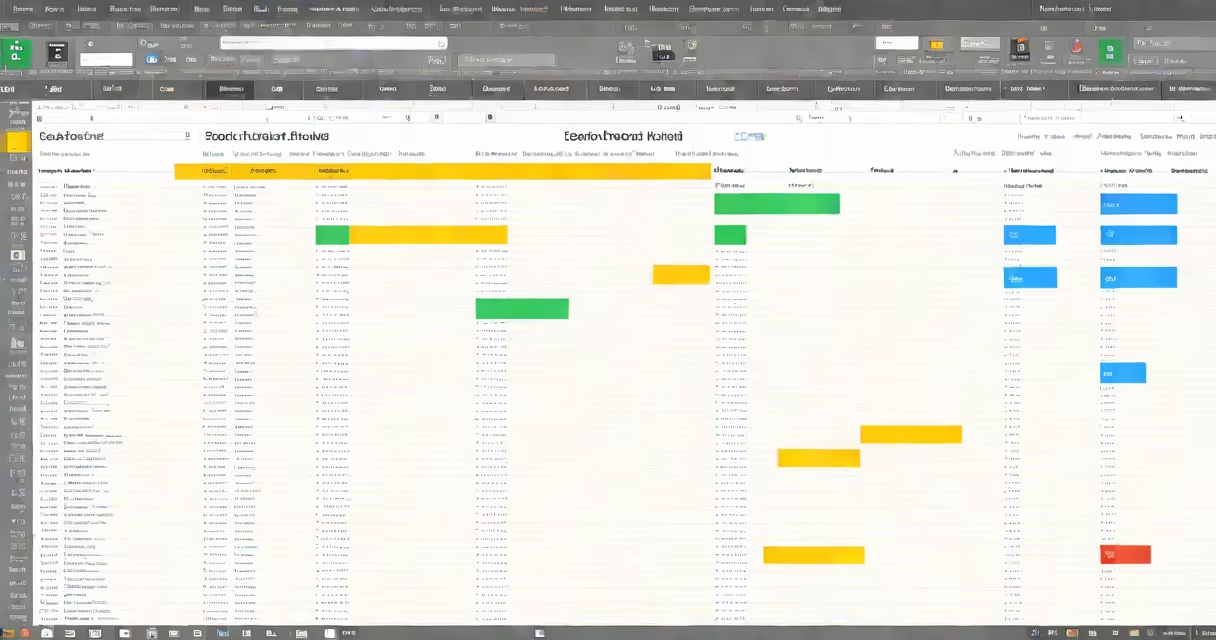
A task tracker template in Google Sheets is a structured spreadsheet designed to monitor assigned tasks, their status, deadlines, and responsible individuals. It enables teams to visualize workflows, assign responsibilities, and track completion in real time using built-in formulas and conditional formatting.
These templates use predefined columns such as Task Name, Assignee, Due Date, Status, Priority, and Progress Percentage. They apply automatic logic-like highlighting overdue tasks in red or updating completion percentages based on checkbox inputs-to reduce manual updates and prevent missed deadlines.
Google Sheets' cloud-based nature allows instant access from any device, real-time collaboration, and integration with tools like Gmail, Calendar, and Apps Script. This makes the template ideal for remote teams, freelancers, and small businesses managing multiple projects simultaneously.
The core function of a task tracker template lies in its use of formulas and conditional formatting. For example, a formula in the Status column might read:
=IF(TODAY()>[Due Date], "Overdue", IF([Status]="Completed", "Done", "Pending"))This automatically flags tasks past their deadline. Conditional formatting then turns those cells red, making issues visible at a glance.
Another common feature is the use of checkboxes in a column labeled "Complete." When checked, a formula calculates the percentage of completed tasks out of the total. For instance:
=COUNTIF(C:C, TRUE)/COUNTA(C:C)*100This gives a live progress bar for each project, useful during weekly reviews.
Templates often include dropdown menus for Status (e.g., Not Started, In Progress, Blocked, Completed) and Priority (Low, Medium, High). These are created via Data Validation, ensuring consistent entries across users.
Most task tracker templates share the same foundational structure. Variations exist based on use case and complexity.
| Type | Best For | Key Features |
|---|---|---|
| Basic Task List | Individuals or small teams | Simple columns: Task, Assignee, Due Date, Status |
| Project Management View | Long-term initiatives | Dependencies, milestones, Gantt-style timeline |
| Team Workflow Tracker | Marketing, product, or dev teams | Columns for Reviewer, Approval Status, Feedback Notes |
| Automated Reminder Version | High-volume or time-sensitive work | Integration with Google Calendar alerts and email notifications via Apps Script |
One underused feature is the ability to embed a changing calendar view using Google Sheets' built-in calendar integration. By linking due dates to a shared calendar, team members receive pop-up reminders and can see overlapping deadlines in a visual format.
For advanced users, adding Apps Script enables automated actions. A script can send an email notification when a task is marked "Blocked" or auto-update the status column when a colleague checks off a task in a linked form.
Many assume that task trackers require complex setup or coding. In reality, most templates are ready to use within five minutes after importing from Google Sheets' template gallery.
Another misconception is that these templates only suit project managers. Freelancers, students, and personal organizers use them daily. A freelance graphic designer tracked 12 client revisions using a simple task tracker, reducing late submissions by 68% over three months.
A critical error is failing to lock header rows and protect formulas. Without protection, team members may accidentally delete essential functions. Always use "Protect Range" under the "Data" menu to secure formulas and dropdowns.
Also, avoid using free templates from unverified sources. Some contain hidden scripts that can access your Google account or export data. Stick to templates from official sources like Google Workspace Marketplace or reputable creators like Vertex42 or Smartsheet.
In early 2023, a startup marketing team used a custom task tracker template to coordinate a product launch across four channels: social media, email, website copy, and influencer outreach.
They set up the following columns:
Each week, the team leader ran a filter to show all tasks with "In Progress" status and a due date within 48 hours. Over 90% of tasks were completed on time during the campaign.
When a task was delayed, the system highlighted it in yellow. The team responded by reallocating resources, preventing bottlenecks. After the launch, they reviewed the sheet and found that 87% of tasks had been completed within the planned window.
They later exported the data into a dashboard using Google Data Studio, showing task volume and completion rates over time. This helped justify hiring an additional team member for the next cycle.
Begin with a simple template from Google's official template library. Search "task tracker" in the Google Sheets homepage under "Template Gallery." Select one with clear instructions and built-in examples.
Customize it by renaming columns, adjusting colors, and setting up filters. Share it with team members via link or email. Set permissions to "Comment" for collaborators and "Editor" for leads.
Always test the template with a pilot group before rolling it out company-wide. Gather feedback on clarity, usability, and missing features. Update the template quarterly to reflect evolving processes.
Using a task tracker template in Google Sheets reduces miscommunication, improves accountability, and provides measurable insights into team performance. It's not just a tracking tool-it's a foundation for consistent delivery.