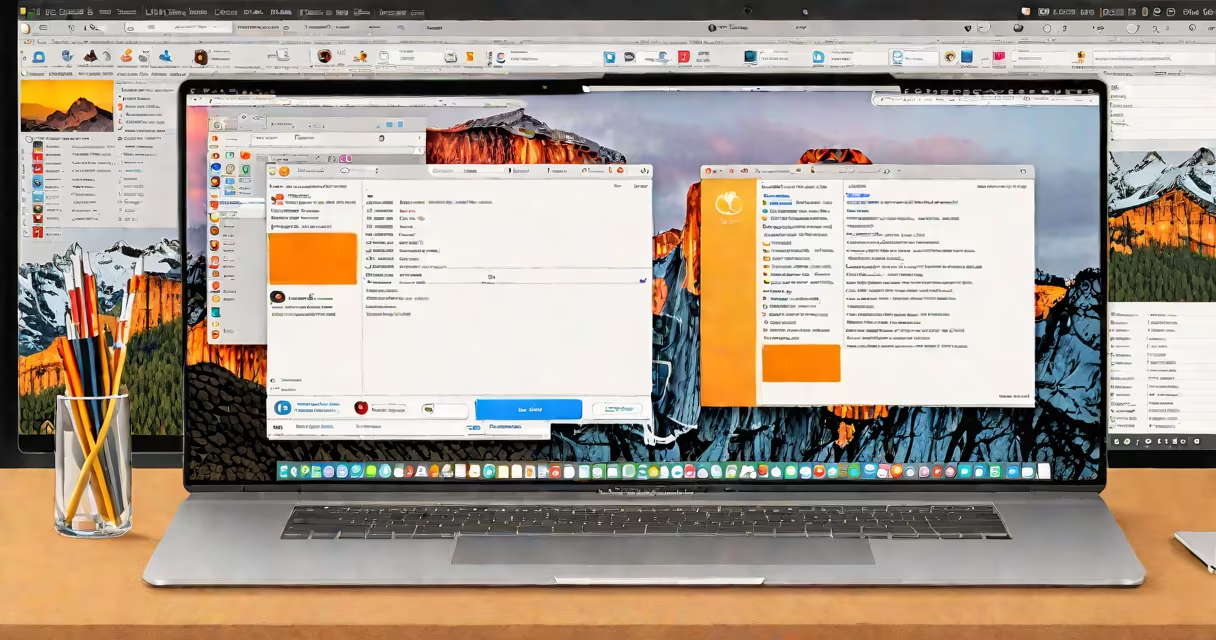
The mac os x file manager, called Finder, is the default application for browsing, organizing, and managing files and folders on macOS. It provides access to local storage, external drives, network locations, and cloud services through a graphical interface.
Finder runs on every Mac with macOS installed. It displays files in list, icon, column, and gallery views. Users can copy, move, rename, and delete files using drag-and-drop, keyboard shortcuts, or context menus. It integrates with Spotlight search, iCloud Drive, and Time Machine backups.
Apple introduced Finder in 1984 with the original Macintosh. Since then, it has evolved from a basic file browser into a central hub for system navigation. Modern versions include features like Quick Look, Tags, and Sidebar customization. Finder is not a standalone app-it's part of the macOS operating system and cannot be uninstalled.
Finder operates as a core component of macOS. When launched, it opens a window showing the user's home directory, which contains Documents, Downloads, Desktop, and other standard folders. The sidebar lists frequently accessed locations such as Applications, Devices, and Network.
Users interact with Finder through clicks, keyboard commands, and gestures. For example, pressing Command + N creates a new window. Right-clicking a file brings up options like "Get Info," "Duplicate," or "Move to Trash." The toolbar includes buttons for sorting, viewing modes, and sharing.
Finder uses metadata stored in the system's extended attributes to track file properties. This includes creation date, modification time, ownership, and custom tags. These attributes are preserved across file operations and sync with iCloud when enabled.
Finder offers several built-in tools that improve file management:
When connected to a network, Finder displays shared drives from other computers or NAS devices. It supports SMB, AFP, and WebDAV protocols. Users can mount remote volumes and access them as if they were local disks.
Finder also handles file permissions. Right-clicking a file and selecting "Get Info" reveals who can read, write, or execute it. This is critical for users managing shared workspaces or troubleshooting access issues.
Many users mistake Finder for a file-sharing tool or assume it's responsible for syncing files between devices. Finder does not sync files-it only shows what's on the local disk or mounted volume. File synchronization happens via iCloud, Dropbox, or other third-party apps.
A frequent error is losing the Finder window entirely. This occurs when the window is minimized behind others or when the desktop is cluttered. To restore it, press Command + Shift + H to open the home folder, or click the Finder icon in the Dock.
Another misconception is that Finder is slow or outdated. Performance issues usually stem from corrupted preferences or misconfigured settings. Resetting Finder preferences by deleting ~/Library/Preferences/com.apple.finder.plist (after backing up) often resolves sluggish behavior.
Some users try to replace Finder with third-party file managers like Path Finder or ForkLift. While these offer advanced features like dual-pane views and batch renaming, they don't replace Finder-they run alongside it. Apple does not allow replacing Finder with alternative software due to system integrity protections.
Suppose a user deletes a document named "Q3_Report.pdf" from their Desktop. The file moves to the Trash. After 30 days, it's automatically removed unless restored.
To recover it:
If the file was permanently deleted, the user can restore it from a Time Machine backup. Open System Settings → General → Time Machine → Restore Files. Select the date when the file existed and drag it back to the Desktop.
This process relies on Finder's integration with system-level tools. Without Finder, accessing the Trash or restoring from backup would require command-line tools or third-party utilities.
Finder interacts with the Apple File System (APFS), introduced in 2017. APFS supports features like snapshots, encryption, and space sharing. These improve performance and reliability when Finder performs operations like copying large video files.
For example, when moving a 10 GB video file within the same drive, Finder uses APFS's copy-on-write mechanism. Instead of copying all data, it creates a new reference to the existing blocks. This makes the operation nearly instantaneous.
APFS also enables file cloning. Right-clicking a file and choosing "Make Alias" creates a shortcut that points to the original. Changes to the original are reflected in the alias. This differs from a hard link, which shares the same inode.
Understanding APFS helps explain why Finder sometimes reports different file sizes. A file may show 500 MB in the Details panel but occupy 2 GB on disk due to compression or deduplication. The actual space used depends on the underlying filesystem, not the visible size.
| Feature | Finder (macOS) | Path Finder (Third-Party) |
|---|---|---|
| Default File Manager | Yes | No |
| Dual-Pane View | No | Yes |
| Batch Renaming | Limited | Advanced |
| Customizable Toolbar | Basic | Highly customizable |
| Integration with iCloud | Full | Partial |
While third-party tools offer power-user features, Finder remains the most stable and secure option for everyday tasks. Apple restricts access to low-level filesystem operations, preventing unauthorized modifications that could corrupt data.
I've used Finder daily since 2016. Once, after upgrading to macOS Monterey, my desktop icons disappeared. Rebuilding the desktop database via Terminal (using `killall Finder`) restored them. This confirmed that Finder manages visual state independently of the file system.
For users considering offloading older macOS versions, remember that Finder behavior changes across releases. Some features like Stack customization were removed in macOS Ventura. Downgrading may restore functionality-but risks compatibility with newer apps.
When working with encrypted volumes or external drives, ensure the disk is unlocked before accessing files. Finder won't display contents until the volume is mounted. This applies to drives formatted with APFS or HFS+, especially those encrypted with FileVault.
mac os x file manager is not just a tool-it's the gateway to the entire macOS experience. Its design prioritizes consistency, security, and ease of use over complexity. For most users, mastering Finder means mastering their Mac.