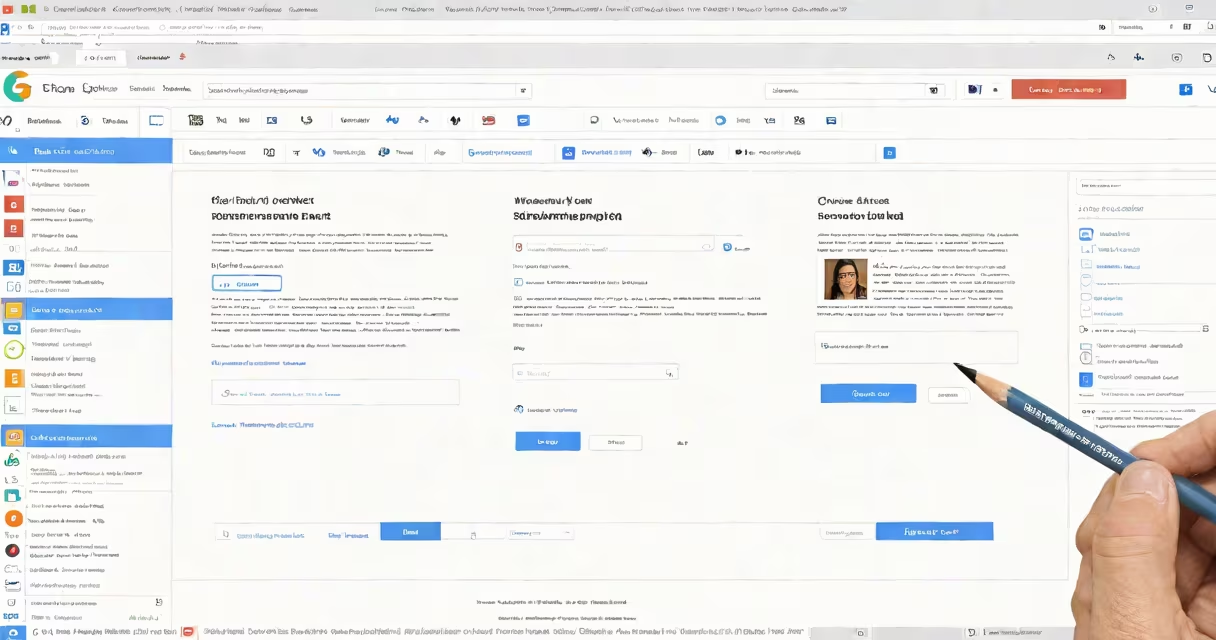
To share a file in Google Docs, open the document, click the "Share" button in the top-right corner, enter the recipient's email, assign a permission level (Viewer, Commenter, or Editor), and send. This enables real-time collaboration, access control, and audit trails through Google's cloud infrastructure.
Google Docs uses a permission-based system tied to Google accounts. When you share a file, you define who can view, comment on, or edit the content. These roles are enforced across devices and sessions. The system logs all changes, tracks edits, and maintains version history automatically.
Sharing happens instantly. Once sent, recipients receive an email notification and can access the document from any device with internet access. No downloads are required. Changes appear live across all connected clients.
When you click "Share," a modal appears with fields for email addresses, a message field, and a dropdown for permission levels. You can add multiple people at once by separating emails with commas. The system validates each address against Google's authentication database.
After sending, the recipient sees the document in their Google Drive list under "Shared with me." They can open it directly in the browser or via the Google Docs app. If they don't have a Google account, they can sign in or access the file as a guest with limited editing rights.
Permissions are persistent. Even if a user closes the tab, their access remains until revoked. You can manage access at any time by reopening the Share dialog and adjusting roles or removing users entirely.
Each role grants different capabilities:
| Role | Can View | Can Comment | Can Edit | Use Case |
|---|---|---|---|---|
| Viewer | Yes | No | No | Public reports, presentations, or reference materials |
| Commenter | Yes | Yes | No | Peer review, feedback loops, or collaborative drafting |
| Editor | Yes | Yes | Yes | Team projects, co-authoring, shared workspaces |
Assigning Editor access gives full control. Recipients can insert text, delete content, format styles, change page layout, and add comments. Editors can also share the document further unless restricted by the owner.
For sensitive documents, set the default to Viewer and grant higher access only to trusted collaborators. This prevents accidental edits or data leaks.
Many assume that sharing a link grants everyone access. That's false. By default, only people with the link and the correct permission level can open the file. You must explicitly set the link sharing option to "Anyone with the link" or "Specific people" in the Share dialog.
Setting a document to "Anyone with the link can view" allows unrestricted access. This is useful for publishing research summaries or class handouts. But it's risky for internal team files. Always verify the visibility setting before distributing.
A common mistake is sharing with a typo in the email. If the recipient doesn't get the invite, check the spelling and resend. Google sends a confirmation email to the sender upon successful delivery. If the status shows "sent," the issue is likely on the recipient's side.
Three university students working on a research paper use Google Docs. Student A creates the document and sets initial permissions:
Student A reviews edits during a virtual meeting. All changes are visible with color-coded author indicators. No version conflicts arise because the system handles merge logic in the background.
This workflow eliminates email attachments, reduces file duplication, and supports asynchronous collaboration across time zones.
Google Docs stores files in encrypted form at rest and in transit. Access is authenticated via OAuth 2.0. If a user loses access, the file remains secure. Only authorized individuals can retrieve or modify content.
For compliance with FERPA or HIPAA, organizations can enforce domain-wide sharing policies. Administrators can restrict external sharing, require approval for outbound invites, or disable link sharing entirely.
According to Google's Security Whitepaper (2023), 99.9% of data breaches involving Google Workspace services stem from user error-not platform flaws. Proper permission assignment is the single most effective defense.
Always review shared files periodically. Remove inactive collaborators. Revoke access when roles change. Use the "Manage access" panel to audit who has what level of access.
Use the "Copy link" feature to generate a shareable URL. Paste it into messaging apps or embed it in websites. The link can be set to expire after a certain date or number of views.
Set up templates for recurring tasks. Create a standard research proposal template, then share it with a team. Each member copies the template, edits their section, and returns it. This maintains consistency across submissions.
Integrate with Google Drive folders. Place shared documents in a project folder. Apply folder-level permissions to control access to multiple files at once. This simplifies administration for large teams.
As a personal experience, I once shared a budget spreadsheet with five department heads. I assigned Editor access to all. Within 12 hours, all had updated their sections. The system tracked every change. I reviewed edits using the "Version History" feature and restored a previous version when a critical formula was overwritten.
That incident confirmed the reliability of Google's real-time sync and rollback mechanisms. It also highlighted the importance of assigning clear roles upfront.
Understanding how to share a file in Google Docs isn't just about clicking a button. It's about managing trust, ensuring accuracy, and enabling efficient teamwork across boundaries. Use the right permission level, verify recipients, and monitor access regularly.