To determine motherboard type, identify its model number, chipset, form factor, and supported components through physical inspection, BIOS, or system software. This process confirms compatibility with CPUs, RAM, and expansion cards.
Every desktop PC relies on the motherboard as the central circuit board connecting all core components. Knowing its exact specification prevents mismatched upgrades and ensures stable performance. Without accurate identification, installing incompatible parts risks damage or failure to boot.
The most reliable way to determine motherboard is by reading the model label printed directly on the board. Look near the CPU socket, PCIe slots, or along the edge. Common identifiers include manufacturer names (ASUS, MSI, Gigabyte), model numbers (Z690 AORUS PRO, B550 TOMAHAWK), and chipsets (Intel Z690, AMD B550).
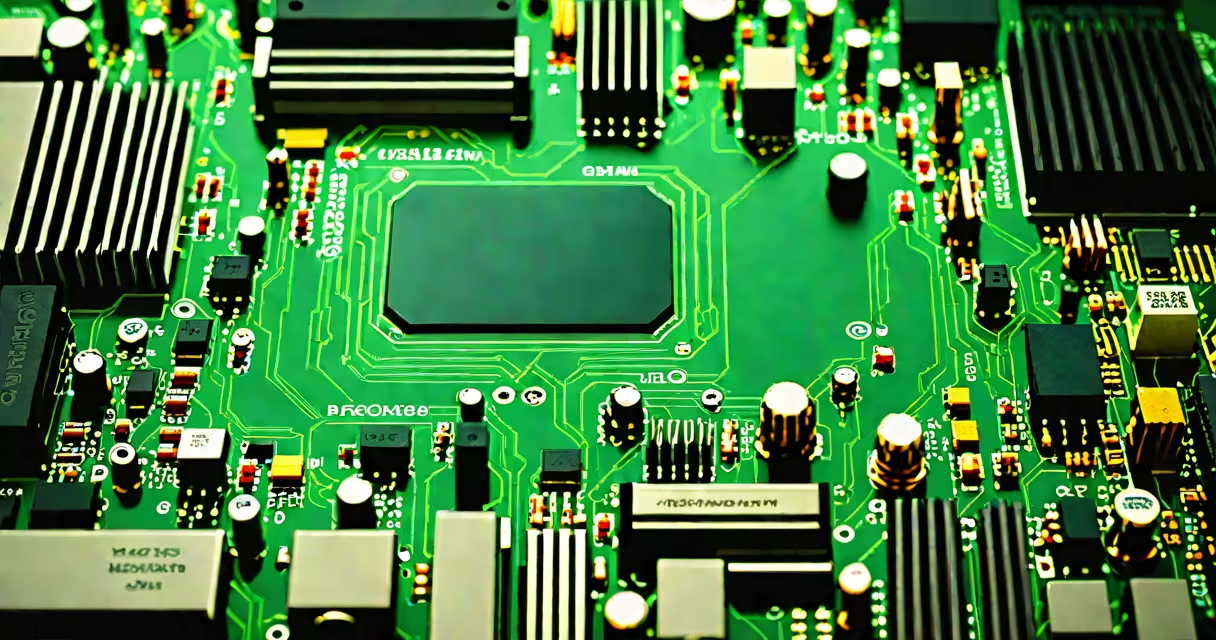
Open the computer case and locate the motherboard. The model number is usually etched on the board near the CPU socket or on the lower-right corner. For example, an ASUS ROG Strix B550-F Gaming board displays "ROG STRIX B550-F GAMING" on the surface.
Chipset names appear alongside the model. Intel chipsets start with "Z," "B," or "H" (e.g., Z690), while AMD uses "X," "B," or "A" (e.g., B550). These define supported features: Z-series offer overclocking, B-series support standard performance, and H-series are budget-focused.
Form factor determines case compatibility. ATX is standard at 12×10 inches. Micro-ATX (9.6×9.6") fits smaller cases. Mini-ITX (6.7×6.7") is compact but limits expansion. Always verify the form factor before buying a case or power supply.
Use system utilities to extract motherboard details without opening the case. Windows includes the Command Prompt tool wmic baseboard get product, manufacturer. Run it in an elevated command prompt to return output like:
Manufacturer  Product
ASUS          ROG STRIX B550-F GAMING
Third-party tools like CPU-Z display the motherboard model under the "Mainboard" tab. It shows the manufacturer, model, and chipset. For Linux users, dmidecode -t 2 returns the same data via terminal.
BIOS/UEFI firmware also stores motherboard information. Access it during boot by pressing F2, Del, or Esc. Go through to "System Information" or "Main" tab. The model appears alongside the serial number and version.
These methods avoid physical disassembly. They're useful for remote troubleshooting or identifying systems in locked cabinets.
Many assume the motherboard's brand (e.g., ASUS) equals its model. That's incorrect. Two ASUS boards may differ in chipset, RAM support, or expansion options. A B550 board supports DDR4 and PCIe 4.0, while a B450 only supports DDR4 and PCIe 3.0.
Another error is confusing the motherboard with the chassis. The case holds the board but doesn't define its capabilities. A Mini-ITX case doesn't make the motherboard Mini-ITX unless the board itself measures 6.7×6.7 inches.
A lesser-known issue: some motherboards use custom model names. For example, MSI's "MAG B550 Tomahawk" has a unique model ID that differs from standard B550 boards. Always cross-check against official specifications.
Follow this workflow to accurately determine motherboard identity:
wmic to confirm findings.For example, a user found "Gigabyte B550 AORUS PRO AC" on their board. Cross-referencing on Gigabyte's site confirmed it supports PCIe 4.0, dual M.2 slots, and Wi-Fi 6. This verified compatibility with an AMD Ryzen 5 5600X and a GeForce RTX 3060.
| Chipset | Supported CPU Series | RAM Type | PCIe Version | Overclocking Support |
|---|---|---|---|---|
| Intel Z690 | 12th-14th Gen Intel Core | DDR5 | PCIe 5.0 | Yes |
| AMD B550 | AMD Ryzen 5000/7000 series | DDR4 | PCIe 4.0 | No |
| Intel H610 | 11th-13th Gen Intel Core | DDR4 | PCIe 3.0 | No |
This table shows how chipset choice affects upgrade paths. A Z690 board allows future CPU upgrades and faster storage. An H610 limits RAM speed and expansion options.
I once helped a user replace a failing motherboard in a gaming PC. The original board was a Gigabyte Z390 AORUS PRO. After removing the old board, I compared the new one-MSI Z390 A Pro-to the original. Both were Z390, but the MSI had fewer USB ports and lacked integrated audio jacks. The user assumed they were interchangeable. They weren't. The mismatch caused audio issues until corrected.
This incident highlights why identifying the exact model matters. Even boards with the same chipset can differ in features. Always compare full specifications, not just the chipset name.
When upgrading, always verify compatibility. For example, a user wanted to install a 32GB DDR4-3200 RAM kit on a B450 board. The board only supports up to 3000MHz. Installing faster RAM won't harm the system, but it runs at reduced speed. Checking the motherboard's QVL (Qualified Vendor List) prevents such mismatches.
Always validate findings using multiple sources. Manufacturer websites provide the most accurate technical data. Avoid relying solely on third-party forums or unverified listings.
Knowing how to determine motherboard type prevents costly mistakes, ensures component compatibility, and enables informed upgrades. Whether building a new system or troubleshooting an existing one, precise identification is essential.