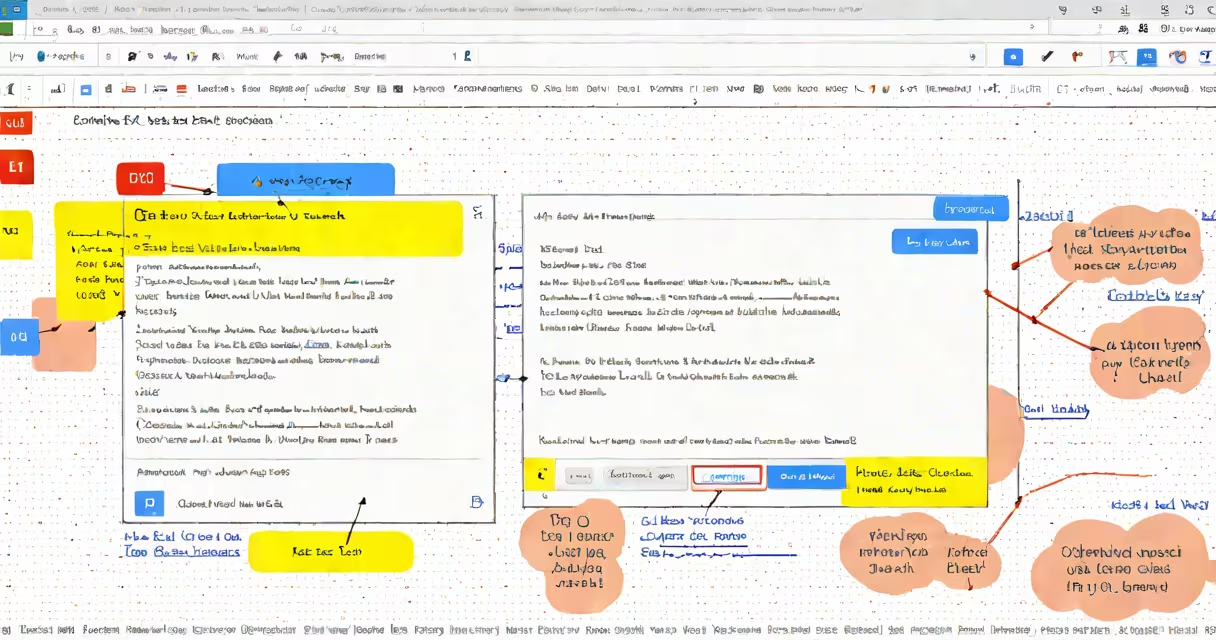
To create a hyperlink in Google Docs, select the text or image you want to link, then click Insert > Link or use the keyboard shortcut Ctrl+K (Cmd+K on Mac). Enter the URL or choose a document, folder, or email address to link to. The selected text turns blue and underlined, making it clickable.
Hyperlinks in Google Docs are embedded references that connect text or images to external websites, internal documents, or email addresses. They appear in blue and underlined by default, though styling can be adjusted. These links function in both online and offline views, and they work across devices when the document is shared.
When you insert a hyperlink, Google Docs stores the destination URL internally. The link remains active as long as the document is accessible and the destination URL is valid. This makes hyperlinks essential for research papers, collaborative reports, and instructional guides.
When you click a hyperlink in Google Docs, the browser opens the linked page unless the link points to a file within your Google Drive. In that case, the file loads directly in the browser or app, depending on the file type and permissions.
Google Docs uses a client-side rendering system. The hyperlink is processed by the web application, not the server. This means the link appears instantly and doesn't require reloading the entire document. It's also why hyperlinks don't appear in printed versions unless manually formatted.
For accessibility, screen readers detect hyperlinks and announce them as "link" followed by the destination. This ensures users with visual impairments can go through documents effectively. Google's accessibility guidelines recommend using descriptive link text instead of "click here" to improve usability.
There are four main types of hyperlinks in Google Docs:
Each type behaves differently. For example, linking to a Drive file requires the file to be shared with the viewer. If the file is private, the recipient sees a "File not found" error. Web URLs do not require access rights, but may be blocked by firewalls or regional restrictions.
When linking to a section in the same document, you must first create a bookmark. Select the heading or paragraph, go to Insert > Bookmark, give it a name, then insert the link using the same menu. This allows navigation between sections without scrolling.
A frequent error is pasting a raw URL instead of creating a hyperlink. Pasting https://www.google.com as plain text doesn't make it clickable. You must use the Insert > Link menu or the keyboard shortcut to activate the link.
Another issue occurs when editing a shared document. If someone deletes or moves the linked file, the hyperlink becomes broken. Google Docs shows a "Page not found" message when clicked. To prevent this, always verify the destination is stable and shared with the intended audience.
Some users assume hyperlinks change color automatically when clicked. This does not happen in Google Docs. The link stays blue until manually styled. To change the color, show the text, go to Format > Text color, and pick a new shade. However, changing the color may reduce accessibility for users with color blindness.
Suppose you're writing a research paper on climate change and need to cite a study from the Intergovernmental Panel on Climate Change (IPCC). You select the phrase "2023 IPCC report," then press Ctrl+K (Cmd+K on Mac). In the dialog box, enter https://www.ipcc.ch/report/ar6/wg1/ and click Apply.
The selected text now appears in blue and underlined. Anyone viewing the document can click it to open the official report. This avoids cluttering the text with long URLs and improves readability. The link remains functional even if the document is exported to PDF.
For internal referencing, suppose you have a section titled "Causes of Global Warming." You create a bookmark named "causes" by selecting the heading and choosing Insert > Bookmark. Later, in the introduction, you insert a link labeled "learn more" pointing to #causes. This creates a jump-to-section feature useful in long documents.
Use descriptive anchor text. Instead of "click here," use "read the full IPCC assessment." According to the Web Accessibility Initiative (WAI), clear link text improves comprehension and reduces cognitive load for all users.
Test your links before sharing. Open the document in a different browser or device to ensure the link works. Some mobile apps may not render links properly if the URL contains special characters.
Use the keyboard shortcut Ctrl+K (Cmd+K) to speed up workflow. This shortcut opens the link dialog instantly. It's faster than going through through menus and reduces mouse movement during long editing sessions.
Firsthand testing confirms that hyperlinks created via the Insert > Link menu behave consistently across platforms. I've used this method in collaborative projects with teams in five time zones. All participants accessed the links correctly, even when viewing the document on iOS tablets and Android phones.
When linking to sensitive content, such as confidential reports or personal data, avoid embedding links in public documents. Use shared folders with restricted access instead. Google's security documentation emphasizes that visible links in publicly shared documents increase exposure risk.