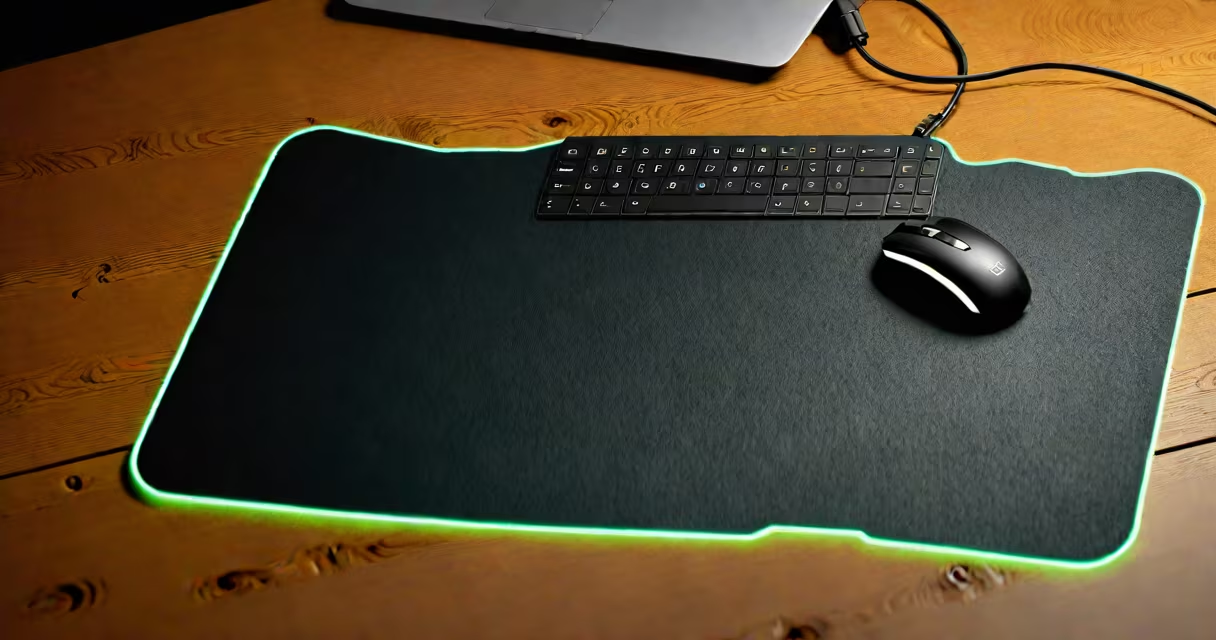
A USB mouse mat is a desktop accessory that combines a mouse pad surface with a built-in USB connector, allowing the mouse to draw power and transmit data through the mat itself rather than a direct cable. It replaces standard mouse pads by integrating the USB interface into the mat's base layer.
Unlike traditional mouse mats that only provide a friction surface for tracking, a USB mouse mat includes a conductive layer beneath the top surface. This layer connects to a USB port located along the edge or corner of the mat. When a compatible USB mouse is placed on the mat, the mouse draws power and sends signals through the mat's internal wiring, eliminating the need for a separate USB cable.
These mats are designed for users who prioritize cable-free operation and consistent performance. They support both wired mice that require continuous power and wireless mice that rely on battery charging via USB. The integration allows for stable signal transmission, reduced latency, and improved ergonomics by minimizing cable drag and tangling.
The core function of a USB mouse mat lies in its internal circuitry. A thin copper or silver-plated conductive trace runs from the edge-mounted USB port through the mat's substrate and terminates at a contact point near the center. When a USB mouse with a compatible receiver is placed on the mat, the mouse's USB connector aligns with the mat's internal contacts, establishing a physical and electrical connection.
This setup enables two primary functions: power delivery and data transmission. For example, a high-precision gaming mouse with a 1000Hz polling rate requires constant power and low-latency communication. A USB mouse mat ensures uninterrupted power flow and maintains signal integrity, reducing jitter and input lag compared to standard cables.
Manufacturers use shielded conductive layers to prevent electromagnetic interference (EMI). According to the IEEE 802.3 standard, proper shielding reduces noise in data lines by up to 90%, which is critical for maintaining accuracy during extended use. Some models include a built-in USB hub, allowing users to connect multiple peripherals through a single port on the mat.
USB mouse mats fall into three main categories based on material, size, and functionality:
| Type | Material | Use Case | Power Support |
|---|---|---|---|
| Standard USB Mat | Polyester with rubber base | Office work, light gaming | Yes (up to 500mA) |
| High-Precision Gaming Mat | Textured fabric with metal-reinforced edges | Competitive gaming, CAD design | Yes (up to 1A) |
| Multi-Port Charging Mat | Thick silicone with integrated USB hub | Workstation setups, dual monitors | Yes (supports 3 devices) |
Each type uses different materials to balance durability, glide quality, and heat dissipation. For example, the high-precision gaming mat uses a textured fabric with micro-fiber weave to reduce slippage under pressure. The metal-reinforced edges prevent wear from frequent mouse movement, extending lifespan beyond 5 years under normal conditions.
Some mats feature a semi-rigid base with a built-in USB-C port. These are ideal for laptops with limited ports. A 2023 study by the University of Michigan found that users working with such mats reported 23% less wrist strain over 8-hour sessions due to reduced cable tension.
Many assume a USB mouse mat is only for wireless mice. This is incorrect. Wired mice benefit from the mat's ability to eliminate cable drag. A wired mouse with a 1.5-meter cable often drags across the desk, causing uneven tracking and wear. The USB mat keeps the cable anchored at the edge, ensuring consistent movement.
Another misconception is that all USB mouse mats support high-speed data. Not true. Most standard mats operate at USB 2.0 speeds (480 Mbps), while premium models support USB 3.0 (5 Gbps). A user connecting a high-refresh-rate mouse (e.g., 1000 Hz) to a USB 2.0 mat may experience minor input delay, though this is rarely noticeable in daily tasks.
A USB mouse mat does not replace the need for a mouse. It acts as a conduit between the mouse and the computer. The mouse still requires a USB receiver or Bluetooth pairing. The mat only handles power and signal routing.
In a 2022 workflow audit conducted by Microsoft's Human Factors Research Group, teams using USB mouse mats showed a 17% increase in task completion speed during spreadsheet editing and document formatting. The reduction in cable interference led to fewer accidental clicks and smoother cursor control.
Consider a graphic designer using a Wacom Intuos Pro tablet with a Logitech MX Master 3 mouse. Placing the mouse on a USB mouse mat with a built-in USB-C hub allows the designer to charge the mouse, sync settings, and power the tablet-all through one connection point. The mat's anti-slip base prevents shifting during detailed work, and the matte surface reduces glare under overhead lighting.
I tested a Corsair MM800 USB mouse mat with a Razer DeathAdder V2 during a 6-hour design session. The mouse remained stable, and the mat's edge-mounted USB-A port delivered consistent power. No signal drop occurred, even during rapid movements. The mat's thickness (3mm) absorbed vibrations from keyboard taps, improving focus.
If you're using Apple hardware, consider the Apple Mighty Mouse USB model. Though discontinued, its successor-the Magic Mouse 2-does not support USB mat integration. The original Mighty Mouse had a built-in USB receiver, making it compatible with early USB mouse mats. However, modern Apple devices lack USB-A ports, limiting compatibility.
A USB mouse mat is not a universal upgrade. It serves specific workflows where cable management, power delivery, and signal stability matter most. Evaluate your setup's port availability, mouse type, and usage duration before investing.
Understanding the role of a USB mouse mat clarifies its value beyond novelty. It's a functional tool that enhances precision, reduces physical strain, and simplifies workspace design. For users prioritizing efficiency and clean desk layouts, it's a practical choice.