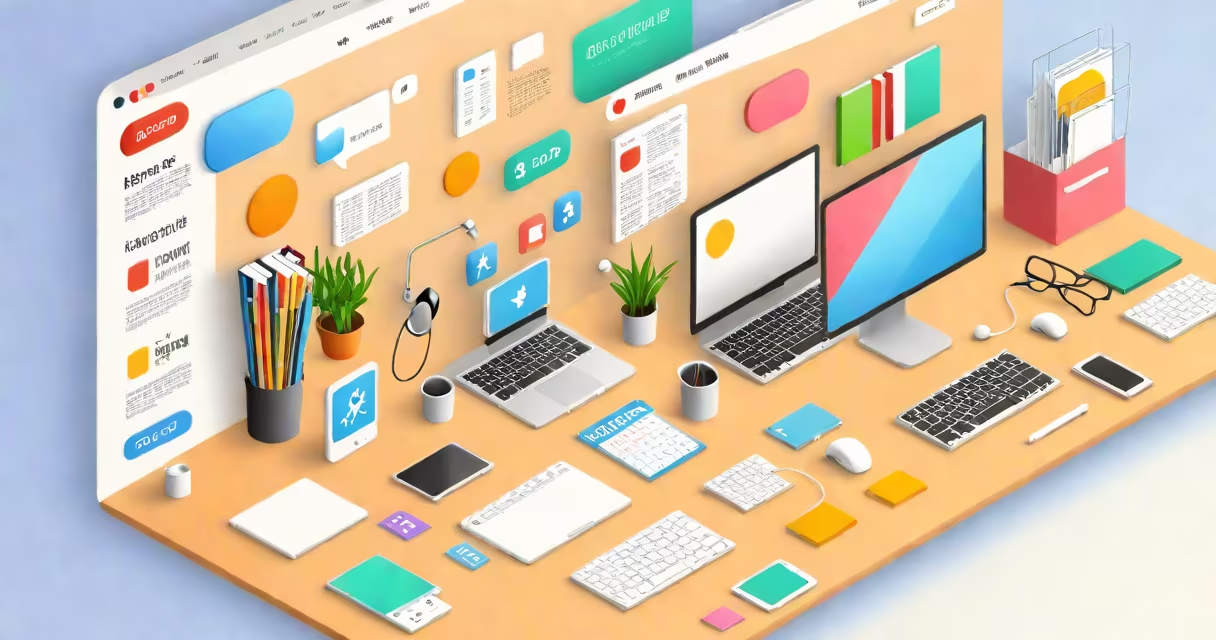
The internet home page is the default webpage a web browser opens when launched. It acts as a customizable digital dashboard, often featuring shortcuts, search functions, news summaries, and weather updates. This page is set by the user or browser provider and can differ between devices and accounts.
When you open a browser, such as Chrome or Edge, the home page appears instantly. It's not a single website but a configurable entry point shaped by user preferences and browser settings. Some users set it to a search engine like Google, others to a news site like CNN, or a personal portal like a custom HTML page.
Modern browsers allow multiple home pages, but only one displays on startup unless configured otherwise. The setting is stored locally or synced across devices via cloud accounts. For example, Chrome uses your Google account to sync the home page setting across your laptop, phone, and tablet.
The browser checks a stored preference each time it launches. This preference is saved in a configuration file or cloud profile. If the user hasn't changed it, the browser defaults to a predefined page-often a search engine or a blank tab.
When you change the home page, the browser updates its internal settings. On Windows, this is typically stored in the registry under the user profile. On macOS, it's in ~/Library/Preferences/com.google.Chrome.plist. These files are not meant for manual editing-they're managed automatically by the browser.
Some websites offer "set as home" buttons. Clicking this triggers JavaScript that modifies the browser's settings through APIs. However, these changes require permission and are limited by security policies. For example, Chrome blocks scripts from changing the home page unless the user explicitly grants access.
Home pages fall into four main categories based on function and design:
| Type | Use Case | Example | Customization Level |
|---|---|---|---|
| Search Engine | Quick access to web searches | google.com | Low - minimal layout, focused on input |
| News Portal | Stay updated on current events | bbc.com/news | Medium - includes headlines, video, and navigation |
| Personal Dashboard | Track tasks, calendars, emails | custom.html with widgets | High - supports embedded scripts and changing content |
| Blank Page | Minimalist browsing, avoid distractions | about:blank | Zero - no content, no tracking |
Many users choose a search engine as their home page because it reduces steps to find information. According to a 2023 Pew Research Center survey, 68% of U.S. adults use Google as their primary search tool, and 54% set it as their default home page.
A lesser-known fact: some browsers allow you to set different home pages for different profiles. Chrome lets you create separate user profiles-one for work, one for personal use. Each can have its own home page, bookmarks, and extensions. This feature helps prevent data mixing between roles.
People often mistake the internet home page for the browser's default search engine. These are distinct settings. The home page is what loads when you open a new window. The default search engine is what handles queries typed into the address bar.
For example, if your home page is cnn.com but your default search engine is Bing, typing "weather forecast" into the address bar will return Bing results-not CNN articles. The two settings operate independently.
Another misconception: that home pages are inherently insecure. While some malicious sites try to hijack the home page setting, most browsers now include protections. Chrome, for instance, warns users if a site attempts to change the home page without consent. The warning appears in the URL bar with a red icon and a message: "This site tried to change your home page."
I once encountered a user whose home page had been altered by a bundled software installer. The installer replaced the home page with a travel booking site. After resetting the setting in Chrome's Settings > On startup, the issue resolved. The fix took less than two minutes and required no technical tools.
To change your home page in Chrome, go to Settings > On startup > Open a specific page or set of pages. Enter the URL (e.g., https://www.bbc.com/news). Save the change. The new page will load the next time you open a new window.
On mobile browsers, the process varies. Safari on iOS doesn't support a custom home page-it opens to a blank tab or the last visited site. Android's Chrome allows setting a home page via Settings > Apps > Chrome > Homepage.
If you want to test a custom home page, create a simple HTML file with a few links and images. Save it as index.html, then open it in your browser. Right-click the page and select "Set as homepage" if the option appears. Not all browsers support this feature.
Advanced users may build a home page using web technologies. One example uses HTML, CSS, and JavaScript to display a daily calendar, weather widget, and RSS feed. The page runs locally, so no internet is needed after initial setup. This setup requires basic coding skills and file management.
When troubleshooting issues, check for conflicting extensions. Some ad blockers or privacy tools alter the home page setting without notification. Disable them temporarily to see if the problem persists. If the home page resets unexpectedly, consider scanning for malware.
The internet home page is a user-controlled starting point. It reflects your habits, goals, and preferred workflows. Whether you use it for research, news, or distraction-free browsing, it's a core part of your daily digital routine.
Understanding how it functions and how to manage it prevents unwanted changes and improves efficiency. With proper setup, your home page becomes a productive launchpad rather than a cluttered landing zone.