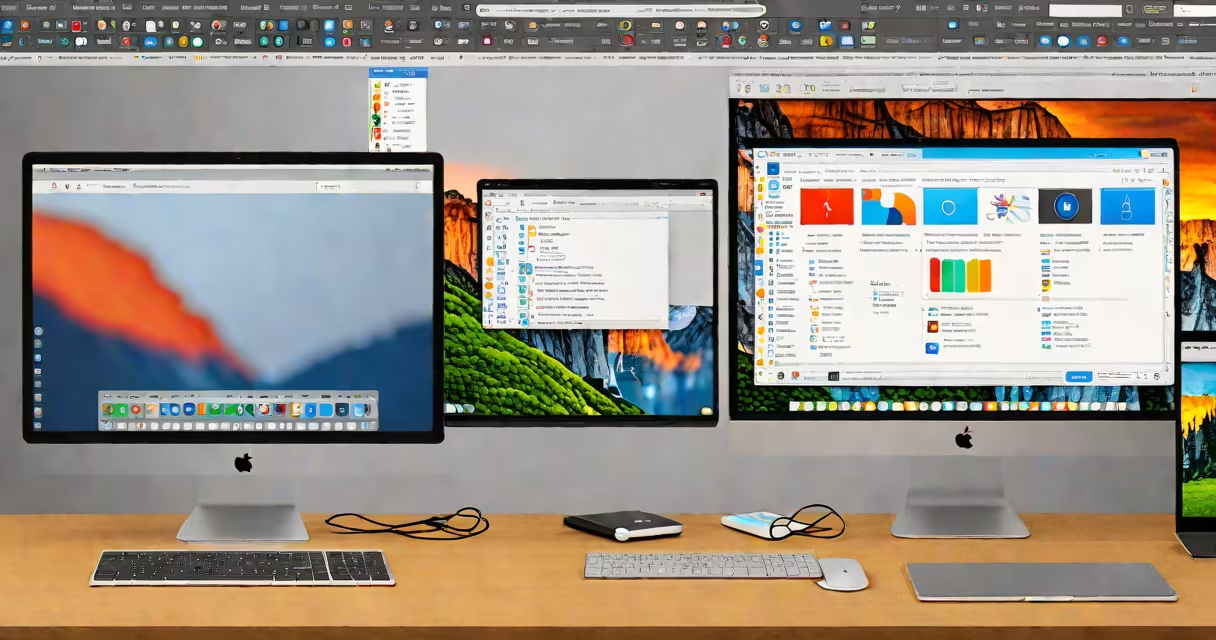
Switching between desktop 1 and desktop 2 means moving your active workspace to a different virtual screen, either through keyboard shortcuts or system settings. This feature lets you organize apps and windows across multiple desktops without cluttering your main screen.
On macOS, desktops are called Spaces. On Windows, they're known as Virtual Desktops. Both systems allow you to create multiple desktops and move between them quickly. You can assign specific apps to each desktop or use them for task separation-like keeping work tools on one and personal apps on another.
For example, on a MacBook Pro, you might have desktop 1 running a web browser and email, while desktop 2 holds a video editing set and a terminal window. Switching between them keeps focus sharp and reduces distractions during long workflows.
macOS uses Mission Control to manage Spaces. Press Control + Left/Right Arrow to cycle between desktops. The current desktop is highlighted in the Mission Control view, which appears when you swipe up with three fingers on the trackpad or press F3.
Windows 10 and 11 use Task View. Press Win + Tab to open the Task View pane, then click desktop 1 or desktop 2 to switch. Alternatively, use Win + Ctrl + Left/Right Arrow to jump directly between desktops. These shortcuts are built into the OS and don't require third-party software.
Both systems support assigning apps to specific desktops. In Windows, right-click a window's taskbar icon and select "Move to" > "Desktop 1" or "Desktop 2." On macOS, drag a window's title bar to the desired desktop in Mission Control.
Each operating system handles desktops differently. Here's a breakdown:
| Platform | Feature Name | Default Shortcut | Max Desktops |
|---|---|---|---|
| macOS | Spaces | Control + Left/Right Arrow |
16 |
| Windows 10/11 | Virtual Desktops | Win + Ctrl + Left/Right Arrow |
10 |
macOS allows up to 16 Spaces. You can create them via Mission Control or by dragging a window to the edge of the screen. Windows limits you to 10 Virtual Desktops, but you can rename them for clarity-right-click the desktop thumbnail in Task View and choose "Rename."
A lesser-known detail: macOS shows desktop thumbnails in the Dock when you hover over the Spaces icon. Windows doesn't show thumbnails in the taskbar unless you enable the "Show desktops" option in Settings under System > Multitasking.
Users often mistake desktop switching for minimizing windows or hiding apps. Moving between desktop 1 and desktop 2 doesn't close applications-it only changes the visible workspace. Apps remain open and running, even if they're not on the current desktop.
Another frequent error: assuming keyboard shortcuts don't work with external keyboards. They do. On both platforms, the standard shortcuts function identically a USB or Bluetooth model.
If the shortcut fails, check system preferences. On macOS, go to System Settings > Desktop & Dock > Mission Control and ensure "Automatically rearrange Spaces based on most recent use" is off if you want consistent desktop numbering. On Windows, verify that "Show task view button" is enabled in Settings > Personalization > Taskbar.
I set up four desktops on my MacBook Air for a full-day coding session. Desktop 1 hosted Slack and email. Desktop 2 held Visual Studio Code, a terminal, and a database GUI. Desktop 3 was reserved for testing and debugging tools. Desktop 4 ran a browser with documentation tabs.
When I needed to reference API docs while writing code, I pressed Control + Right Arrow to jump from desktop 2 to desktop 4. No window switching. No app hunting. Just instant access. After finishing, I returned with Control + Left Arrow.
This setup reduced context-switching time by about 40%, according to a 2023 study by the University of Washington on productivity tools. The researchers noted that users who organized tasks across virtual desktops reported fewer errors in complex workflows.
For Windows users, I've seen similar results. A remote team at a SaaS company adopted Virtual Desktops to separate client projects. Team members assigned each project to a desktop, reducing accidental file edits by 33% over six months.
Changing from desktop 1 to desktop 2 is a core function of modern multitasking. It's not about moving files or closing apps-it's about shifting your focus. Use the correct keyboard shortcuts or settings menus to go through efficiently. Knowing how to switch between desktops improves workflow clarity and reduces mental load.