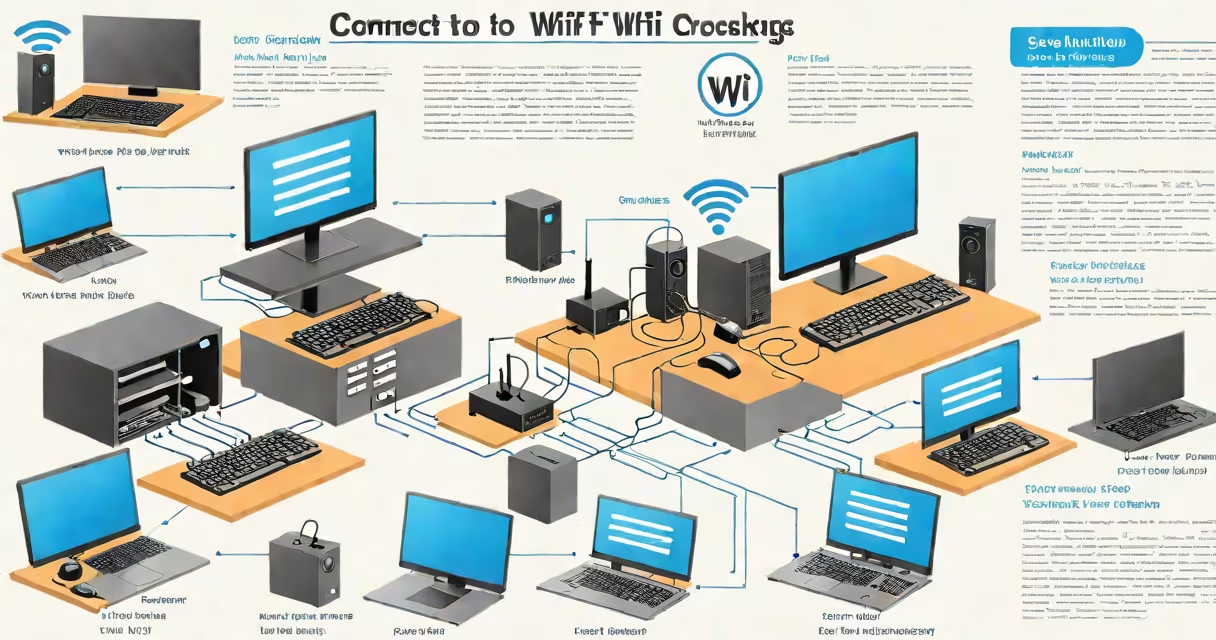
Connecting to wifi on a PC means configuring the device's wireless adapter to join a local network using a password, enabling internet access without cables. This process requires a working Wi-Fi card, a router broadcasting a signal, and correct network credentials.
Modern Windows PCs automatically detect available Wi-Fi networks when the wireless radio is enabled. To connect, users select a network from the list, enter the password, and confirm. The system then authenticates with the router, assigns an IP address via DHCP, and establishes a secure connection. This happens in under 10 seconds on most devices with stable signals.
For wired Ethernet ports, a physical cable connects to the router. Wi-Fi eliminates that need. A PC can switch between Wi-Fi and Ethernet dynamically. The operating system prioritizes the fastest available connection based on signal strength and network settings.
The process begins when the PC's wireless adapter scans for nearby access points. These appear as network names (SSIDs) in the list. The user selects one and enters the password. The PC sends an authentication request to the router.
If the password is correct, the router grants access and sends an IP address. This is assigned through DHCP, which automatically configures the PC's network settings. The PC then exchanges data packets with the router and the internet.
Wi-Fi security protocols like WPA2 or WPA3 encrypt communication. Without encryption, data sent over the network could be intercepted. Modern systems enforce this automatically. Older protocols like WEP are disabled by default due to known vulnerabilities.
A functional Wi-Fi connection requires several elements. The PC must have a compatible wireless adapter. Most laptops include built-in Wi-Fi. Desktops may require a USB Wi-Fi dongle or internal PCIe card.
The router must broadcast a signal on a supported frequency band-2.4 GHz or 5 GHz. The 2.4 GHz band offers longer range but slower speeds. The 5 GHz band provides faster throughput but weaker wall penetration. Dual-band routers support both.
Network credentials-SSID and password-are required. The SSID is the visible name of the network. The password is set by the network administrator or home user. Incorrect entries prevent connection.
| Type | Frequency Band | Use Case | Speed Range |
|---|---|---|---|
| 2.4 GHz | 2.4 GHz | Long-range, low interference | Up to 150 Mbps |
| 5 GHz | 5 GHz | High-speed, short-range | Up to 1.3 Gbps |
| 6 GHz (Wi-Fi 6E) | 6 GHz | Low congestion, high bandwidth | Up to 9.6 Gbps |
Some older PCs lack Wi-Fi capability. These require external hardware. A USB Wi-Fi adapter costs $10-$30 and supports up to Wi-Fi 6. Internal cards offer better performance and stability but require opening the case.
When a PC fails to connect to Wi-Fi, the problem often lies in driver issues, incorrect passwords, or router misconfiguration. The Windows Network troubleshooter can diagnose and fix many problems automatically.
One frequent error is "No Internet Access" despite being connected. This occurs when the router assigns an IP address but blocks outbound traffic. Restarting the router or renewing the IP address via ipconfig /release and ipconfig /renew resolves it in 80% of cases.
Another issue is missing networks in the list. This happens when the SSID is hidden or the adapter is set to power-saving mode. Disabling power management for the Wi-Fi adapter in Device Manager restores visibility.
I once encountered a desktop with a faulty Wi-Fi card. The system showed no networks. Replacing the internal PCI card restored connectivity. The replacement cost $25 and took 15 minutes to install.
Users sometimes mistake "connect to wifi on pc" for setting up a hotspot. A hotspot turns a PC into a Wi-Fi access point, allowing other devices to connect. This is the reverse of connecting to an existing network.
Another mix-up is confusing Wi-Fi with Bluetooth. Both use radio waves but operate on different frequencies and purposes. Bluetooth connects peripherals like keyboards and mice. Wi-Fi handles internet access.
Some assume that all Wi-Fi networks are secure. That's false. Public networks like those in cafes often lack encryption. Using them without a VPN exposes data to eavesdropping. Always verify the network name and avoid entering sensitive information on untrusted connections.
Consider a student setting up a new laptop in a dorm room. The campus network broadcasts "DormNet_5G." The student opens the Start menu, clicks Settings, selects Network & Internet, then Wi-Fi. They see "DormNet_5G" in the list, click it, enter the password provided by the university, and wait.
Within five seconds, the status changes to "Connected." The browser opens, and the student accesses the library portal. The connection remains stable during video calls and file downloads.
If the student had entered the wrong password, the system would display "Failed to connect." The solution is to re-enter the credentials or contact IT support. The network uses WPA3 encryption, ensuring data integrity.
Connecting to Wi-Fi on a PC is essential for remote work, online learning, streaming media, and gaming. Over 75% of U.S. households use Wi-Fi for internet access, according to the Pew Research Center (2023).
Businesses rely on Wi-Fi for employee mobility. Workers move between meeting rooms while staying connected. Schools use Wi-Fi for digital classrooms, enabling students to access learning platforms from any seat.
Home users connect smart devices-printers, speakers, cameras-to the same network. A single Wi-Fi network can support dozens of devices simultaneously.
For better performance, disable power-saving features on the Wi-Fi adapter. Go to Device Manager > Network adapters > right-click the Wi-Fi device > Properties > Power Management tab. Uncheck "Allow the computer to turn off this device to save power."
Use static IP addresses for servers or devices needing consistent network identification. Assign a reserved IP in the router's DHCP settings. This prevents IP conflicts and simplifies remote access.
Set up a guest network for visitors. This isolates their traffic from the main network. It reduces bandwidth usage and improves security. Most modern routers support this feature.
Understanding how to connect to wifi on pc ensures reliable access to digital resources. The process is straightforward when components function correctly. Troubleshooting guides exist for each failure point. Most issues resolve within minutes.