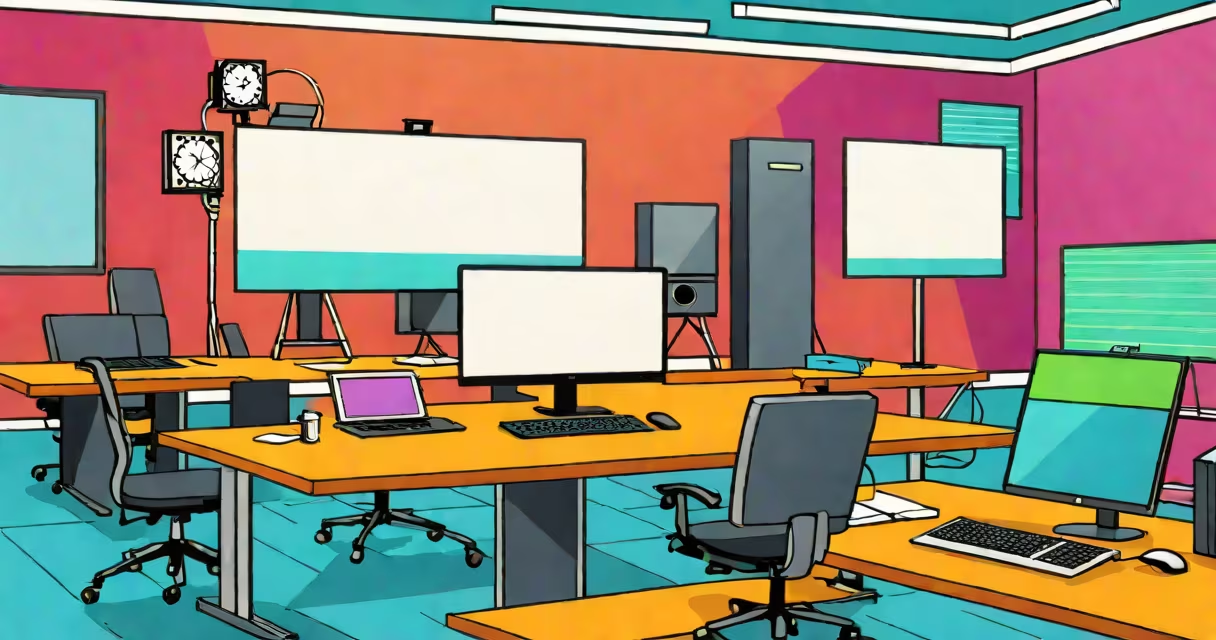
A computer for presentation is a device selected specifically to run slide decks, stream video, control media, and manage interactive elements during live or recorded presentations. It prioritizes display output, port availability, battery life, and stable performance over multitasking or gaming workloads.
These devices typically run Windows, macOS, or ChromeOS and connect via HDMI, USB-C, or wireless protocols to projectors, large screens, or video conferencing systems. They're used in boardrooms, classrooms, trade shows, and remote meetings where visual clarity and technical reliability are essential.
For example, a sales team presenting product demos at a trade show relies on a computer for presentation that boots quickly, supports dual displays, and connects smoothly to a projector without signal lag. A faulty connection or slow startup can disrupt the flow and damage credibility.
The core function is to render and transmit visual and audio content to external displays. The operating system manages graphics drivers, audio routing, and application performance. When a presentation software like PowerPoint or Keynote launches, the computer allocates GPU resources to ensure smooth animation playback and high-resolution image rendering.
Most modern computers support multiple display outputs. For instance, a MacBook Pro with Thunderbolt 4 can drive a 4K monitor via USB-C and simultaneously mirror to a projector using a dongle. This allows presenters to view speaker notes on their laptop while the audience sees the full slide deck.
Background processes are minimized during presentations. Many systems offer "Presentation Mode" that disables notifications, pauses syncing services, and prioritizes CPU allocation to the active app. This reduces the risk of unexpected interruptions during critical moments.
Not all laptops or desktops are equally suited for presentation tasks. The best options balance portability, connectivity, and consistent performance under load.
| Type | Best For | Port Options | Typical Use Case |
|---|---|---|---|
| Laptop (ultrabook) | On-the-go speakers, remote events | HDMI, USB-C, headphone jack | University lectures, client pitches |
| Desktop (all-in-one) | Fixed-location setups, long sessions | Multiple HDMI, DisplayPort, USB-A | Conference rooms, training centers |
| Hybrid tablet | Interactive demos, touch-based navigation | USB-C, micro-HDMI, stylus support | Product walkthroughs, design reviews |
When choosing, prioritize models with at least 16GB RAM and a dedicated GPU if showing video-heavy content. A 1080p webcam and noise-canceling microphone improve remote participation quality.
For example, a teacher using a Lenovo ThinkPad X1 Carbon with Intel Iris Xe graphics runs a 30-minute lecture with embedded videos, live polls, and a Zoom Q&A. The device maintains 60fps playback across all slides and streams audio to a classroom sound system.
Many assume any laptop can serve as a computer for presentation. That's incorrect. Devices with weak cooling systems may throttle performance during extended slideshow playback, causing frame drops or audio sync issues.
Another misconception is that high-end gaming laptops are ideal. While they have useful GPUs, their fans run loudly, and battery life often lasts less than 3 hours. These factors make them poor choices for formal or lengthy presentations.
Some users rely solely on wireless casting (like Miracast or Apple AirPlay). But network congestion or low bandwidth can cause delays, pixelation, or disconnection. Wired connections via HDMI or DisplayPort remain more dependable for high-stakes events.
For instance, during a medical conference, a presenter using a Samsung Galaxy Tab S8 to wirelessly cast a surgical animation lost video sync due to Wi-Fi interference. Switching to a wired HDMI connection resolved the issue instantly.
Consider a nonprofit director preparing a grant proposal pitch. She uses a Dell Latitude 7420 with 32GB RAM, Intel Core i7, and a 14-inch 1080p touchscreen. Her setup includes:
Before the event, she tests the entire chain: power on, launch PowerPoint, verify dual-display mode, play embedded video clips, and confirm audio levels. She disables all non-essential apps and turns off automatic updates.
This preparation helps the computer for presentation operates smoothly under pressure. According to Microsoft's official documentation, "Using a dedicated device for presentations minimizes the risk of crashes and improves user confidence."
When scaling beyond a single screen, 1 computer 2 monitors offers detailed guidance on setting up dual displays for better workflow management during prep and delivery.
A computer for presentation isn't just a tool-it's a performance partner. Its success depends on thoughtful selection, thorough testing, and understanding the specific demands of the environment where it will be used.