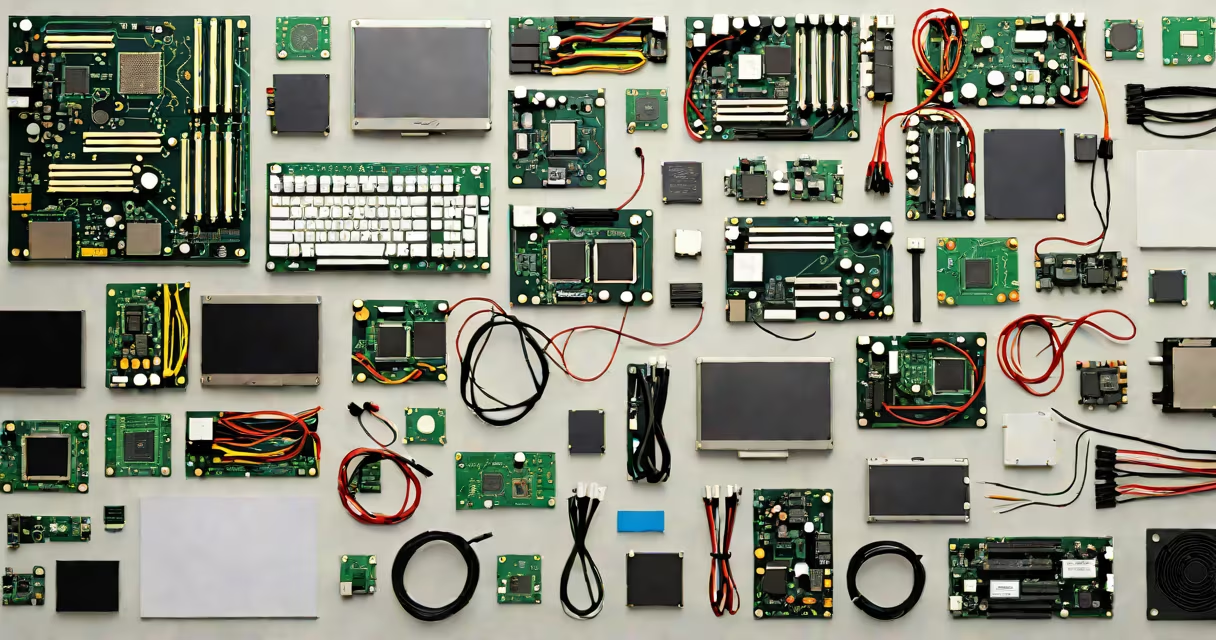
Buying computer components means selecting individual hardware pieces-like CPU, GPU, motherboard, RAM, and power supply-for a custom-built desktop. Each part must work together electrically, physically, and functionally to form a stable, high-performing system.
Unlike prebuilt systems, buying components lets you tailor performance to specific tasks-gaming, video editing, or machine learning-while controlling cost and upgrade path. A single mismatched part can prevent booting or cause instability, so verification is essential.
Each component performs a distinct role. The CPU handles instruction execution. The GPU renders graphics. The motherboard connects all parts via slots, connectors, and power delivery. RAM stores active data. The PSU supplies stable voltage. Storage drives hold the OS and files.
When buying, you start with a use case. A 4K video editor needs a high-core-count CPU, 64GB RAM, and a professional-grade GPU. A competitive gamer prioritizes high frame rates, requiring a fast GPU and high-refresh-rate monitor. These goals dictate which components to prioritize.
After defining purpose, match specs. For example, a Ryzen 7 7700X CPU requires an AM5 socket motherboard and DDR5 RAM. A GeForce RTX 4090 needs a 16-pin PCIe power connector and at least 850W PSU. Failure to align these leads to non-functionality.
Components fall into functional categories. Below is a breakdown of major types, their variants, and compatibility rules.
| Component | Type Variants | Compatibility Requirements |
|---|---|---|
| CPU | Intel Core i9-14900K (LGA 1700), AMD Ryzen 9 7950X (AM5) | Motherboard socket, TDP, cooling solution |
| GPU | NVIDIA RTX 4090 (PCIe 5.0), AMD Radeon RX 7900 XTX (PCIe 5.0) | PCIe slot version, power connector size, case space |
| RAM | DDR5-6000 CL30, DDR4-3200 CL16 | Memory type, speed, dual-channel pairing |
| Storage | NVMe SSD (M.2 2280), SATA SSD, HDD | Drive interface, physical size, connection type |
| PSU | 80 PLUS Gold, 850W, 16-pin PCIe | Wattage, efficiency rating, connector availability |
Non-obvious fact: Not all motherboards support the latest CPUs. Intel's 13th-gen CPUs require Z790 or B760 chipsets. AMD's AM5 platform uses a new socket design that excludes older CPUs. Always verify chipset and socket compatibility before purchase.
Example: I built a workstation using an AMD Ryzen 9 7950X. The motherboard had to be AM5-based with a B650 or X670 chipset. I chose a B650 board because it supported PCIe 5.0 and had enough USB ports. I paired it with 64GB of DDR5-6000 RAM and a 2TB NVMe SSD. The PSU was 1000W 80 PLUS Platinum. All parts fit and ran at full speed.
Common errors include mismatched voltages, insufficient power delivery, and physical interference. A 12V rail delivering 10A can't power a 300W GPU without a dedicated 8-pin connector. A large CPU cooler may block RAM slots or PCIe expansion cards.
Another mistake: assuming higher clock speeds mean better performance. A 4.5GHz CPU with 4 cores may underperform a 4.0GHz 12-core model in multi-threaded workloads. Benchmarks from trusted sources like AnandTech and Tom's Hardware show real-world differences.
People mistake it for "building a PC" as a whole. Buying components is just the first step. Assembly, BIOS setup, driver installation, and thermal tuning follow. Skipping any phase causes failure.
Some assume all GPUs work with all motherboards. But PCIe 5.0 GPUs need a PCIe 5.0 slot. Older boards only have PCIe 4.0, limiting bandwidth. A 4090 in a PCIe 4.0 x16 slot runs at ~20% lower bandwidth in some benchmarks.
Another confusion: thinking more expensive parts equal better results. A $1,200 GPU doesn't improve performance in a game that maxes out at 60 FPS. Matching components to workload prevents overspending. For example, a 1080p gaming rig needs a GPU like the RTX 4070-not the 4090.
Real-world example: A friend bought a high-end motherboard and CPU combo but used a 450W PSU. The system wouldn't boot. After replacing the PSU with a 750W 80 PLUS Gold unit, it powered on and ran stable. The original PSU couldn't deliver sustained current.
Buying computer components demands attention to technical details. You're not just purchasing parts-you're assembling a system where each piece must communicate, share power, and fit within physical constraints. Missteps lead to instability, crashes, or complete failure.
Use verified sources, check compatibility tools, and test builds incrementally. Start with minimal configuration-CPU, motherboard, RAM, PSU-and verify basic boot before adding storage and GPU. This reduces troubleshooting time.