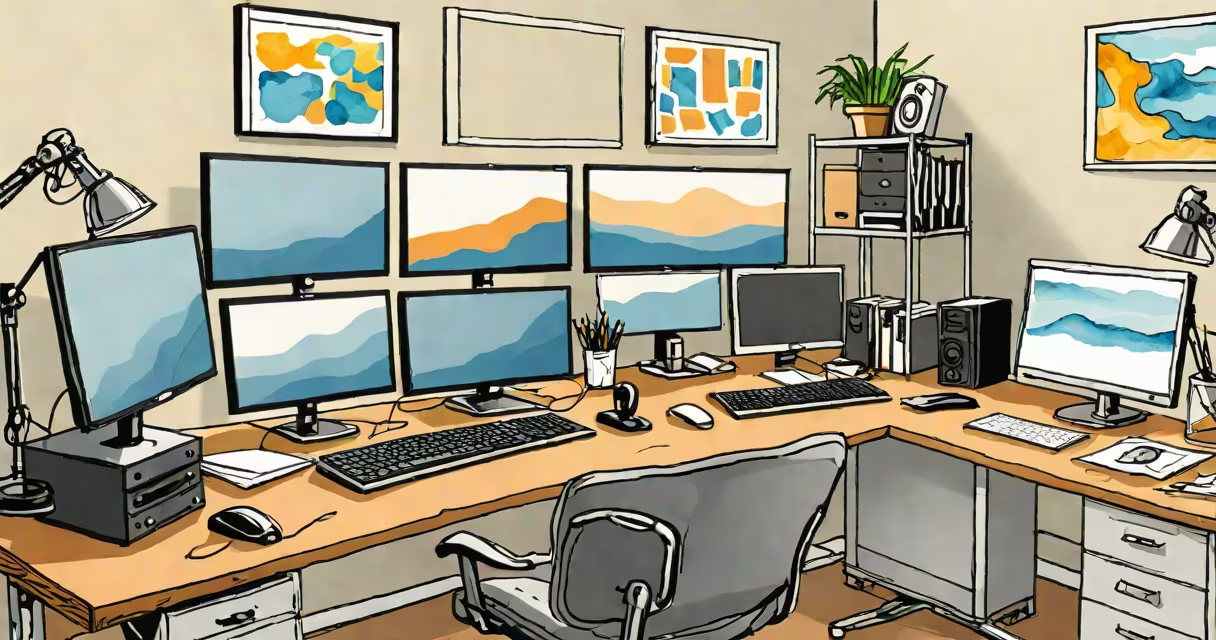
A 1 computer 2 monitors setup uses a single desktop system connected to two display screens simultaneously. This configuration enhances multitasking, expands visual workspace, and supports efficient workflows in remote work, design, programming, and data analysis.
Most modern computers support dual displays through HDMI, DisplayPort, or USB-C outputs. A single GPU can drive two monitors independently, allowing different applications to run on each screen. For example, a user might run a spreadsheet on one monitor and a web browser with research tabs on the other.
Windows 10 and 11, macOS, and Linux all include built-in display management tools. Users can extend their desktop across both screens, duplicate the display, or assign specific apps to one monitor only. The operating system detects the monitors automatically upon connection and allows quick adjustments via display settings.
The central component is the graphics processing unit (GPU). Integrated GPUs in Intel Core and AMD Ryzen processors handle dual monitors for basic tasks. Dedicated GPUs like NVIDIA GeForce RTX or AMD Radeon RX series offer higher resolution support, better color accuracy, and smoother performance during video editing or gaming.
Each monitor connects via a cable-HDMI, DisplayPort, or USB-C-with the appropriate port on the computer. Some laptops lack enough physical ports, requiring a USB-C hub or docking station. A Thunderbolt 4 dock, for instance, can power two 4K monitors at 60Hz while charging the laptop and providing Ethernet and USB-A access.
When both monitors are active, the operating system treats them as one extended desktop. Moving a window from one screen to the other requires dragging it across the edge. Users can set a primary display for the taskbar or menu bar, ensuring consistent placement of icons and notifications.
Dual monitor setups fall into two main categories: extended desktop and mirrored display. Extended desktop splits the workspace across both screens, increasing usable space. Mirrored display duplicates the same image on both screens, useful for presentations or training sessions.
| Setup Type | Use Case | Supported By |
|---|---|---|
| Extended Desktop | Programming, trading, video editing | Windows, macOS, Linux |
| Mirrored Display | Presentations, teaching, demo mode | Windows, macOS, Linux |
| Single Monitor Only | Basic browsing, document editing | Any OS |
For users needing more than two screens, a multi-monitor adapter or GPU with multiple outputs is required. A single NVIDIA RTX 4070 supports up to four displays. Some high-end workstations use dual GPUs to manage six or more monitors.
Studies show that dual monitors increase productivity by up to 30% in tasks involving data comparison or document review. A 2021 report from the University of Utah found that participants using dual screens completed complex spreadsheet tasks 10% faster than those with a single display.
Remote workers benefit. A developer might keep code on one screen and documentation or testing logs on the other. A financial analyst can view live market feeds on one monitor and a portfolio dashboard on the second. This reduces context switching-the mental effort required to shift between tasks-and minimizes errors.
Designers and video editors use dual monitors to preview edits in real time while adjusting timelines or layer properties. Adobe Premiere Pro and Photoshop allow users to place tool palettes on one screen and the project canvas on the other. This layout cuts down on window resizing and maximizes creative flow.
One non-obvious fact: dual monitors reduce eye strain. A 2020 study published in *Ergonomics* found that users who split their work across two screens reported less fatigue during long sessions. The brain processes visual information more efficiently when related content is spatially separated rather than stacked vertically.
Many assume that dual monitors require a useful gaming PC. This is false. A standard desktop with an integrated GPU handles two 1080p monitors without issue. A 2022 benchmark test by TechSpot showed that an Intel Core i5-12400 with Intel UHD Graphics 770 ran two 1080p monitors at 60Hz smoothly while handling web browsing, video calls, and light photo editing.
Another misconception is that dual monitors slow down the computer. Modern operating systems manage display output efficiently. Frame drops or lag occur only when the GPU is overloaded-such as running 4K video rendering or high-refresh-rate games-on top of dual displays.
Users often misconfigure monitor alignment. If the screens aren't positioned correctly in the display settings, dragging windows between them feels unnatural. The system must recognize the physical arrangement-side-by-side, stacked, or diagonal-to maintain accurate cursor movement.
Consider a freelance software developer working from home. Their setup includes a Dell OptiPlex desktop with an Intel Core i7-11700K and an NVIDIA GeForce GTX 1660 Super. They connect two 27-inch Dell UltraSharp monitors via DisplayPort cables.
On the left monitor, they run Visual Studio Code with a project file open. On the right, they have a terminal window showing build logs and a browser tab with API documentation. They switch between debugging and writing code without minimizing windows or alt-tabbing.
They also use a keyboard shortcut to move the active window to the other screen instantly. This reduces mouse travel and keeps hands on the keyboard. Over eight hours of work, they complete more tasks and report fewer distractions compared to when using a single monitor.
After setting up, they adjusted the brightness and color temperature on both screens to match. This eliminated visual mismatch and reduced eye fatigue. They also added a monitor arm to position the screens at eye level, improving posture.
Setting up a 1 computer 2 monitors system is straightforward and offers measurable gains in efficiency. It's not limited to professionals-students, writers, and casual users gain from expanded screen space. The setup works with most modern computers and doesn't require advanced technical skills.
With proper planning and minimal hardware, a 1 computer 2 monitors setup transforms daily work. It's not a luxury-it's a practical upgrade for anyone managing multiple tasks or data streams.